Can bank reconciliation be automated in Business Central?
Yes. Automated bank reconciliation in Business Central runs in two passes: Match Automatically applies text rules, then Copilot proposes matches for the remaining lines, and an accountant reviews and posts.
That split matters to a controller. It shrinks the pile of unmatched lines without taking sign-off away from your team, which is what month end close automation should look like in practice.
This guide covers what Copilot adds, how it differs from automatch, how to switch it on, where it errs, and a year-end routine with one approval step. We checked every feature claim against Microsoft Learn on 16 November 2026. The Learn page was last updated on 2 October 2026 and still labels the feature preview, so re-check it before you go live.
Who approves what Copilot matches in your close?
Talk through your bank reconciliation routine with our team and see where an approval step fits before the year-end close.
if you would rather walk through your own bank accounts with us.
Quick Answer Automated bank reconciliation in Business Central means Match Automatically handles text-based matches first, then Copilot proposes more matches from dates, amounts and descriptions and suggests G/L accounts for leftover lines. Copilot runs on Business Central online only, and a person reviews every proposal and approves every posting.
What does Copilot add to automated bank reconciliation?
Copilot does not replace the reconciliation you already run. It works on the lines that automatch leaves behind, which is where your team’s hours go.
We use one simple model to keep the order straight, and we reuse its stage names through the rest of this post.
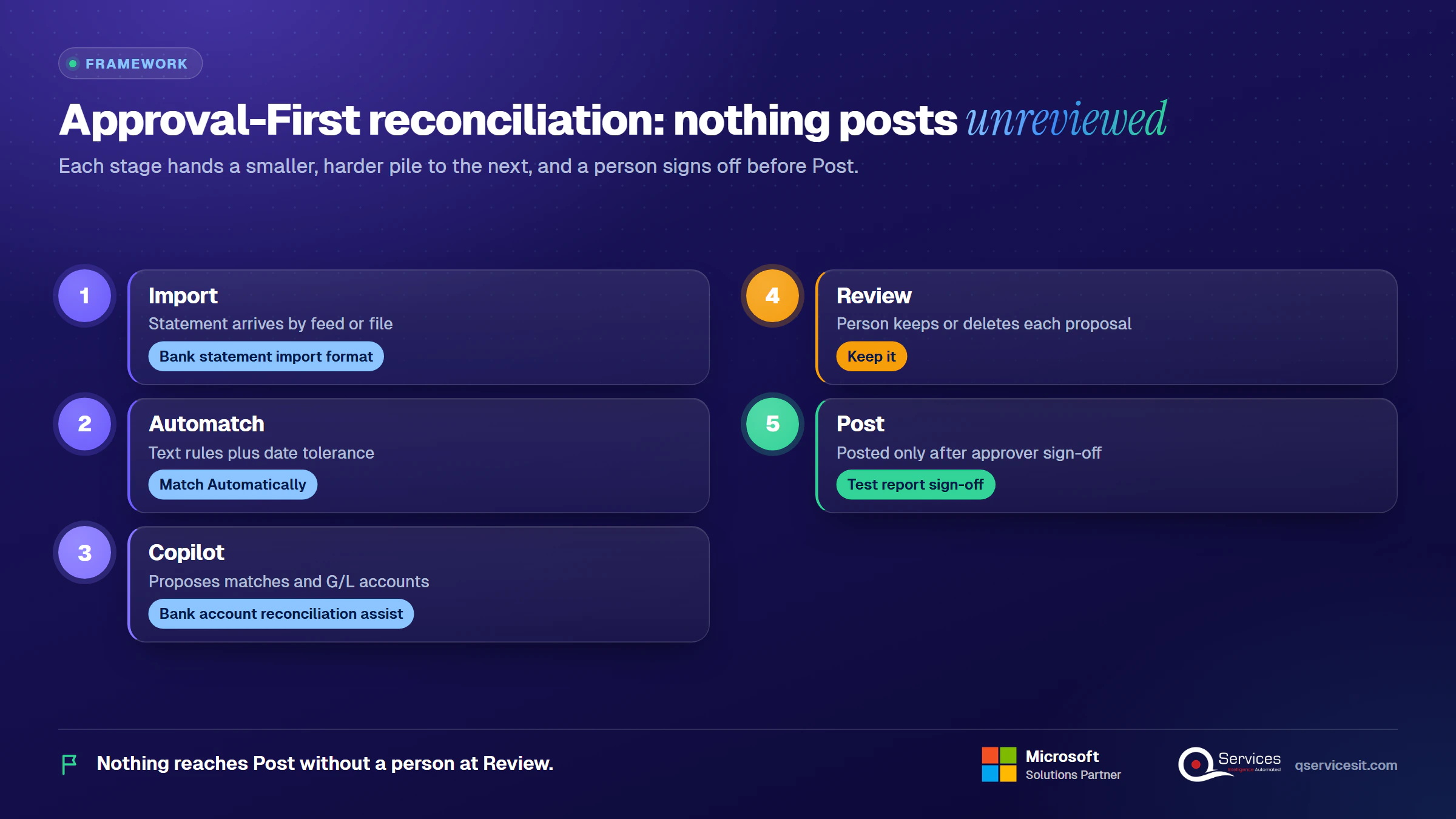
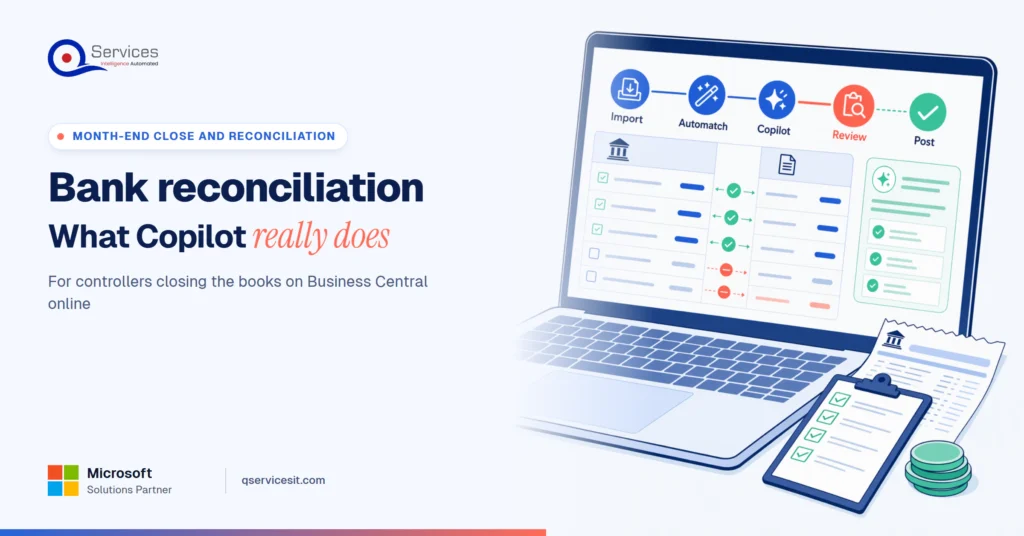
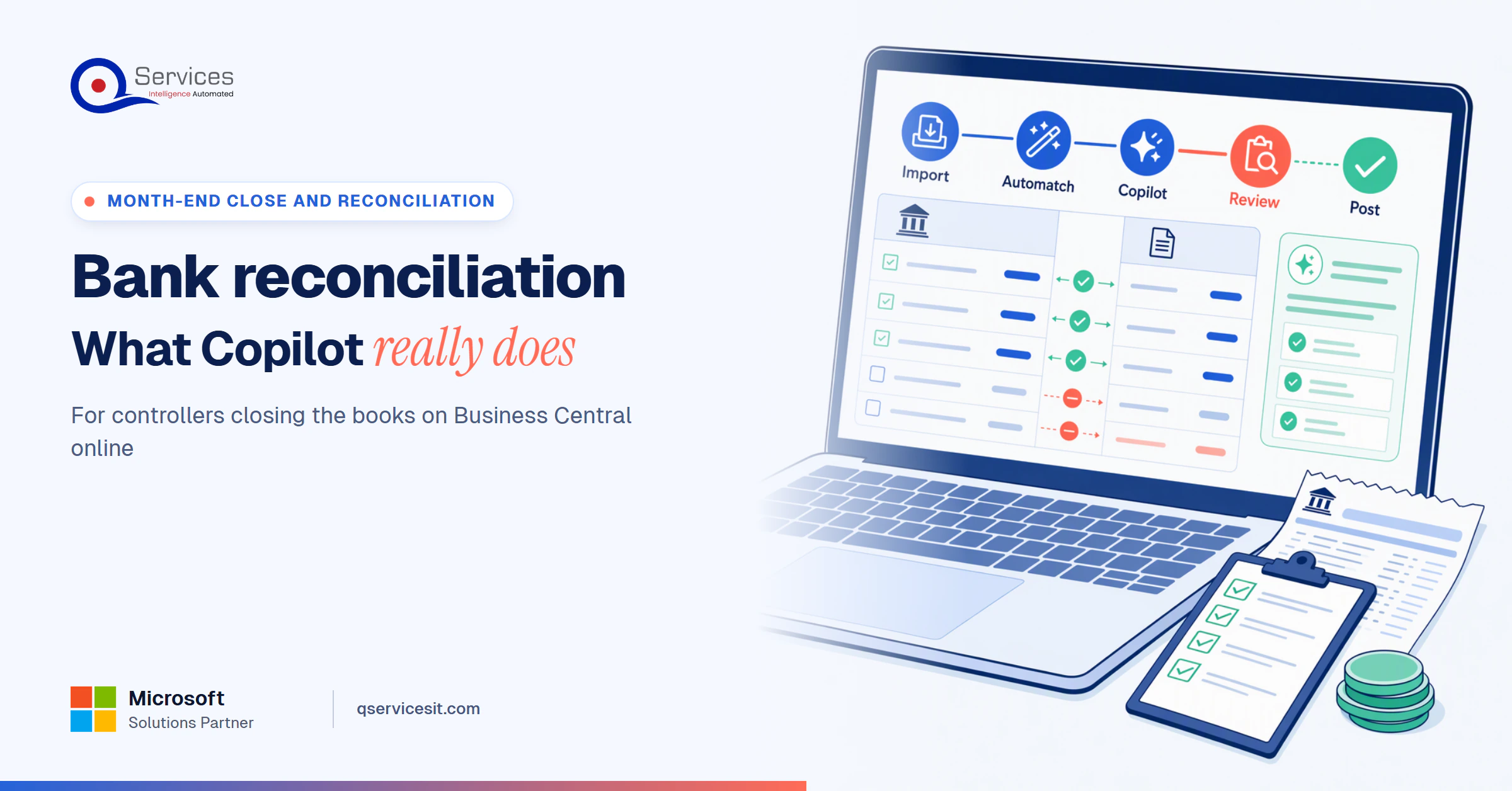
The QServices Framework Approval-First Reconciliation = Import → Automatch → Copilot → Review → Post
The order matters because each stage hands a smaller, harder pile to the next, and nothing reaches Post without a person at Review.
What does bank account reconciliation assist do?
Microsoft Learn calls the feature bank account reconciliation assist (see Reconcile bank accounts with Copilot). It does two jobs.
- It finds more matches among transactions automatch left unmatched, based on dates, amounts and descriptions.
- It suggests G/L accounts for residual lines by comparing the line description with G/L account names. Microsoft’s example is ‘Fuel Stop 24’ suggested for a Transportation account.
In short, Copilot supplements automatch in Business Central. Microsoft’s own wording is that it is intended to supplement the automatch operation.
How does Copilot suggest bank reconciliation matches in Business Central?
Here is how Copilot suggests bank reconciliation matches in Business Central: you run it on a reconciliation, it inspects the open statement lines and bank ledger entries, and it returns proposals you can keep or delete. The headline example from Microsoft is a customer who pays several invoices in one lump sum. Copilot reconciles that single statement line with the multiple ledger entries.
Nothing it proposes is saved until you select Keep it and close the window. That one design choice is why the Review stage in our model is not optional.
Key Insight Per Microsoft Learn, nothing Copilot proposes is saved to the database until you select Keep it. The review step is built into the feature, so skipping it means skipping part of the feature itself.
What are 1:1, 1:N, N:1 and N:N matches in Business Central?
First, two terms. Bank reconciliation proves that the cash on your books agrees with the bank statement. Ledger matching is the line-by-line pairing that gets you there.
The match shapes work like this in Business Central terms:
- 1:1: one statement line to one ledger entry, such as a single check.
- 1:N: one statement line to several ledger entries, such as one ACH deposit covering four invoices.
- N:1: several statement lines to one ledger entry, such as one payment split by the bank.
- N:N: several lines on both sides, rare and usually a sign to fix the source data first.
Manual matching handles one-to-many. Learn adds a limit worth remembering: a many-to-one match with differences cannot be posted, even if the differences net to zero.
How does automatch differ from Copilot suggestions?
Automatch is text-based and rule-driven. Copilot adds a second pass that weighs dates, amounts and descriptions together, then proposes matches for a person to confirm. Automatch runs first through the Match Automatically button, and Copilot works on what is left.
What does Match Automatically actually compare?
The difference between automatch and Copilot in Business Central starts with inputs. Automatch compares text on a statement line with text on bank ledger entries and applies a Transaction Date Tolerance (Days) setting. You can inspect the basis for any match with Match Details.
Learn says these algorithms can sometimes leave many transactions unmatched, and its FAQ calls the rules inflexible. Partners report the same pattern when a document number is missing from the bank description. If your bank strips invoice numbers, expect a long unmatched list from rules alone.
How do manual, rule-based and Copilot matching compare?
Here is the automatch vs Copilot comparison, with manual work as the baseline.
|
Manual |
Match Automatically |
Copilot-assisted |
| Matching logic |
Person reads each line |
Text compare plus date tolerance |
Dates, amounts and descriptions together |
| Fuzzy descriptions |
Handled by judgment |
Weak when text differs |
Better, but can be wrong |
| Grouped payments |
One-to-many by hand |
Mostly one-to-one |
Can match one line to several entries |
| Review needed |
Every line |
Spot checks via Match Details |
Every proposal before Keep it |
| Audit trail |
Posted entries only |
Inspectable match basis |
Saved only after Keep it; your sign-off is the evidence |
| Setup effort |
None |
Import format and tolerance |
Highest: online only, admin activation, page permissions, extra review step |
The last row is the honest downside. Copilot adds a review step and setup work that rules alone do not need. That is a good trade only when your unmatched pile is big enough to justify it.
How do you set up automated bank reconciliation in Business Central online?
Setup is a configuration task, not a project. Most of the work is permissions and one pilot account.
How do you turn on Copilot bank reconciliation in Business Central online?
Follow these steps to turn on Copilot bank reconciliation in Business Central online. This is the Copilot bank reconciliation setup in order:
- Confirm you use Business Central online. Learn lists this as a prerequisite.
- Ask an administrator to confirm the Bank account reconciliation capability is active on the Copilot & agent capabilities page. Capabilities are active by default when available.
- Grant users permission on pages 7250 (Bank Acc. Rec. AI Proposal) and 7252 (Trans. To GL Acc. AI Proposal).
- Check the Allow data movement toggle. It matters only when your environment’s geography differs from the Azure OpenAI geography. Without it, Copilot is unavailable in that case.
- Pick one bank account for a pilot and keep its manual process running alongside.
Admins can also deactivate the capability or grant and deny access per user, which gives you a clean off switch. See Enable AI features in Business Central for the admin side.
Does Copilot bank reconciliation work in Business Central on-premises?
No, plan on online only. Copilot runs on Business Central online only, and Learn lists online use as a prerequisite. We could not confirm how the feature behaves in any other deployment, so do not build an on-premises plan around it.
How do you automate bank reconciliation in Business Central?
This is the flow we run for automated bank reconciliation in Business Central:
- Import the statement. If the account is linked to an online feed, it arrives on its own. Otherwise import the file (CAMT.053, MT940 or CSV through your bank statement import format). Copilot does not connect to the bank.
- Open the Bank Account Reconciliations list and open or create the reconciliation.
- Select Match Automatically and set the Transaction Date Tolerance (Days).
- Select Copilot, then Reconcile, and wait for proposals.
- Review each proposal. Use Match Details where you doubt it and Delete Line for wrong ones.
- Select Keep it and close the window, with Post if fully applied left off.
- Run the test report, hand it to the approver, and post only after sign-off.
Capacity is bounded. Learn gives roughly 1,000 open bank ledger entries in the statement’s date window for 2025 wave 1 and earlier, and roughly 3,000 for 2025 wave 2 and later, varying with description length.
What tolerances and thresholds should a controller set?
Microsoft publishes no defaults for these, so treat the list below as our starting points, not product settings.
- Date tolerance: 1 to 3 days for ACH accounts, up to 7 only for accounts with slow checks.
- Second look: any proposal over $5,000, or any line with no document number in the description.
- Fee lines: accept a suggested G/L account only after you check the account name against the description.
- False-match rate: proposals deleted or later reversed, divided by proposals kept. Track it every close.
A false match costs more than a missed one. An invoice wrongly shown as paid hides in the books until the customer calls, and it feeds exactly the mess described in how to clear unapplied cash.
Where does Copilot still get bank statement matches wrong?
Where Copilot gets bank statement matches wrong is fairly predictable. Learn’s FAQ says suggestions might sometimes be incorrect or incomplete, and that users must review them before Keep it.
Two limits are documented. Copilot works best when G/L account names, ledger descriptions and bank descriptions share a language, and mixed languages often give fewer matches. Microsoft also says it is not intended for fraud detection or to check whether customers paid on time.
Microsoft tested with synthetic data and published no accuracy percentage. We found no independent benchmark either, so measure your own match rate.
What does a 25-line statement look like with each method?
This is an illustrative scenario for a US operating account in USD, not a client result. The four invoices behind the ACH deposit are $6,200.00, $5,150.00, $4,300.00 and $2,800.00.
| Line |
Match Automatically |
Copilot proposal |
Human action |
Result |
| ACH batch deposit $18,450.00 |
No, no single entry |
One line to the 4 invoices |
Confirm the four add up exactly |
Matched 1:N |
| Wire fee $35.00 |
No ledger entry |
Suggests the Bank Charges account |
Check the account, accept |
Posted to Bank Charges |
| Check cleared 6 days late, $3,980.00 |
No, outside 3-day tolerance |
Proposes by amount and description |
Confirm check number |
Matched |
| Short-pay $12.50 (invoice $2,400.00, received $2,387.50) |
No, amounts differ |
May propose the invoice |
Decide: write off or chase |
Posted with a reason |
| Duplicate vendor payment $6,200.00 |
First debit matches |
Nothing to match |
Investigate, ask for a refund |
Stays open until credit arrives |
| Other 20 lines |
17 matched |
3 proposed |
Review the 3 |
All matched |
The duplicate payment is the line that proves the point. No matching tool should make it disappear, and Copilot correctly leaves it alone. For the short-pay, our guide to tracking each short pay shows the reason codes to attach.
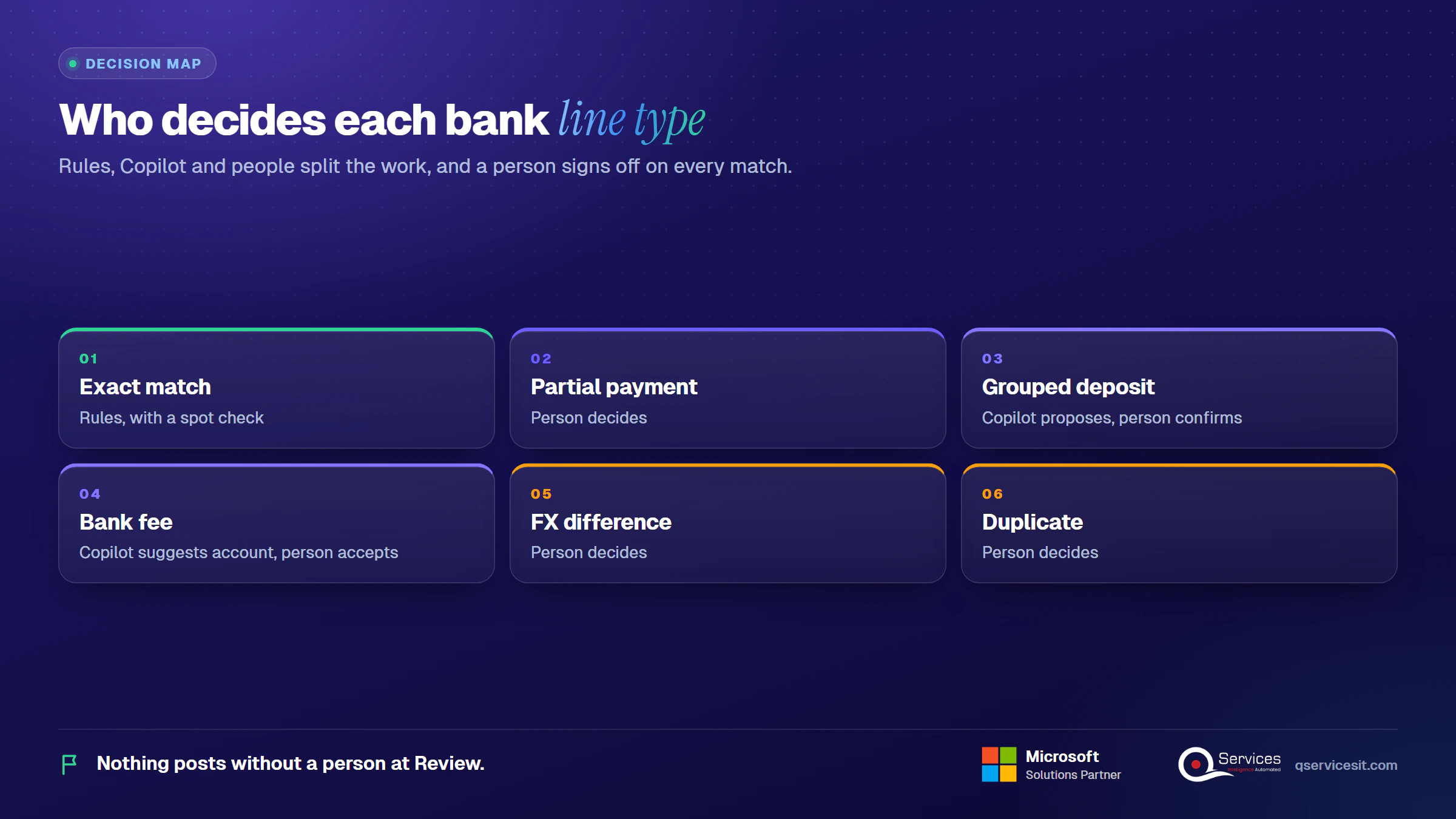
Which line types does a person decide?
| Line type |
Who decides |
| Exact match |
Rules, with a spot check |
| Partial payment |
Person |
| Grouped deposit |
Copilot proposes, person confirms |
| Bank fee |
Copilot suggests account, person accepts |
| FX difference |
Person |
| Duplicate |
Person |
What does Copilot not do?
- It does not post unattended. Keep it, then posting, are your actions.
- It does not fix bad master data, such as duplicate vendors or wrong names.
- It does not replace the controller’s review or sign-off.
- It does not connect to your bank. You import the statement or use a feed.
- It does not detect fraud or check whether customers paid on time.
What goes wrong at month-end?
Four failures show up again and again in month-end bank reconciliation.
- Wrong-period cutoff: a statement imported with the wrong date range makes valid entries look unmatched.
- Stale bank rules: a saved Text-to-Account Mapping keeps assigning an account after the vendor changed.
- Bad vendor names: ‘ACME INC’, ‘Acme Incorporated’ and ‘ACME’ give descriptions that never agree.
- Unmatched intercompany transfers: one side posts this month and the other next month. See cash application across companies.
When is a custom agent better than Copilot?
| Need |
Match Automatically |
Copilot |
Custom agent |
| Exact text matches |
Yes |
Not needed |
Not needed |
| Fuzzy or grouped lines |
Weak |
Yes, with review |
Yes, with review |
| Rules across many banks |
Per reconciliation |
Not a documented feature |
Yes |
| Intercompany matching |
No |
Not a documented feature |
Yes |
| Exception routing and approvals |
No |
No |
Yes |
| Build and upkeep effort |
Lowest |
Low |
Highest |
A custom agent is worth it only when exceptions pile up in places Copilot does not cover. Otherwise it is extra upkeep.
Is auto-post switched on in your tenant?
If matched lines can post without review, a short call can help you check the setting and design an approval step that fits.
Should you let Copilot post when every bank line matches?
No. Leave auto-post off. Learn documents a Post if fully applied option, but our policy is that a person approves every bank reconciliation posting.
Will Copilot auto-post when all bank lines match?
Not by itself. Learn says that turning on Post if fully applied posts the reconciliation ‘when all lines (100 percent) are matched and you select Keep it.’ So even with the switch on, someone still selects Keep it.
The wording does not spell out whether Copilot-proposed matches count toward the 100 percent check. We treat that as undocumented, so test it in a sandbox. Even if you allow it, Business Central reconciliation auto-post skips the Review stage, which is the one stage that catches a wrong match.
Key Insight A reconciliation can reach 100 percent matched and still be wrong. A fully matched statement proves every line found a partner, not that each partner was the right one.
Why does a person approve every bank reconciliation posting?
This is our policy, not a rule from Microsoft or a standards body. The reasoning is plain: the person who prepares should not be the only person who approves, and a tool that suggests and posts removes both people.
Undo exists on the Bank Account Statement List, and you correct erroneous ledger entries by reverse posting. Both work, but they cost a reopened period at the worst moment. Approval first is cheaper. For the wider principle, see why human-in-the-loop is non-negotiable.
How does a controller run this across several bank accounts?
Real-World Scenario A typical case we see: a controller runs six bank accounts with about 2,400 statement lines a month and a 5-day close target. In the naive setup, Post if fully applied is on for every account, and a clean-looking account posts with one grouped deposit matched to the wrong customer’s invoices. The error surfaces in the aging report two weeks later. In the Approval-First model, the Review stage catches it: the preparer keeps proposals, the approver reads the test report, and the grouped deposit gets a second look before anything posts. This is an illustration, not a client result.
What should a controller document for audit evidence?
- The test report for each reconciliation, kept with the sign-off.
- Who prepared and who approved, with the two being different people.
- Parallel-run results for the pilot account: manual result against Copilot-assisted result.
- Your Allow data movement setting and which users hold the page permissions.
- The admin decision to activate or deactivate the capability.
Standards & References
What does a year-end bank reconciliation checklist look like in Business Central?
A year-end bank reconciliation checklist in Business Central differs from the monthly one because year-end close is a separate process, and errors now land in audited numbers. Pair this with our month end close process checklist.
What does a year-end reconciliation routine with one approval step look like?
- Rehearse in a sandbox copy first, including Copilot proposals.
- Confirm the statement cutoff date and the import date range.
- Run Match Automatically, then Copilot, with auto-post off.
- Work the leftovers by hand: partial, FX and duplicate lines.
- Open the test report and list Outstanding Bank Transactions and Outstanding Checks. Learn explains how to find outstanding transactions in previous periods if they carry over.
- Record unrecorded fees and interest, and age every reconciling item.
- Send the finished test report to one approver who did not prepare it. This is the single approval step.
- Post, then file the report and sign-off as evidence.
The approval comes once, after the review work, so it stays quick and meaningful. For the monthly rhythm around it, see our accounts receivable reconciliation routine.
How do you measure the time saved?
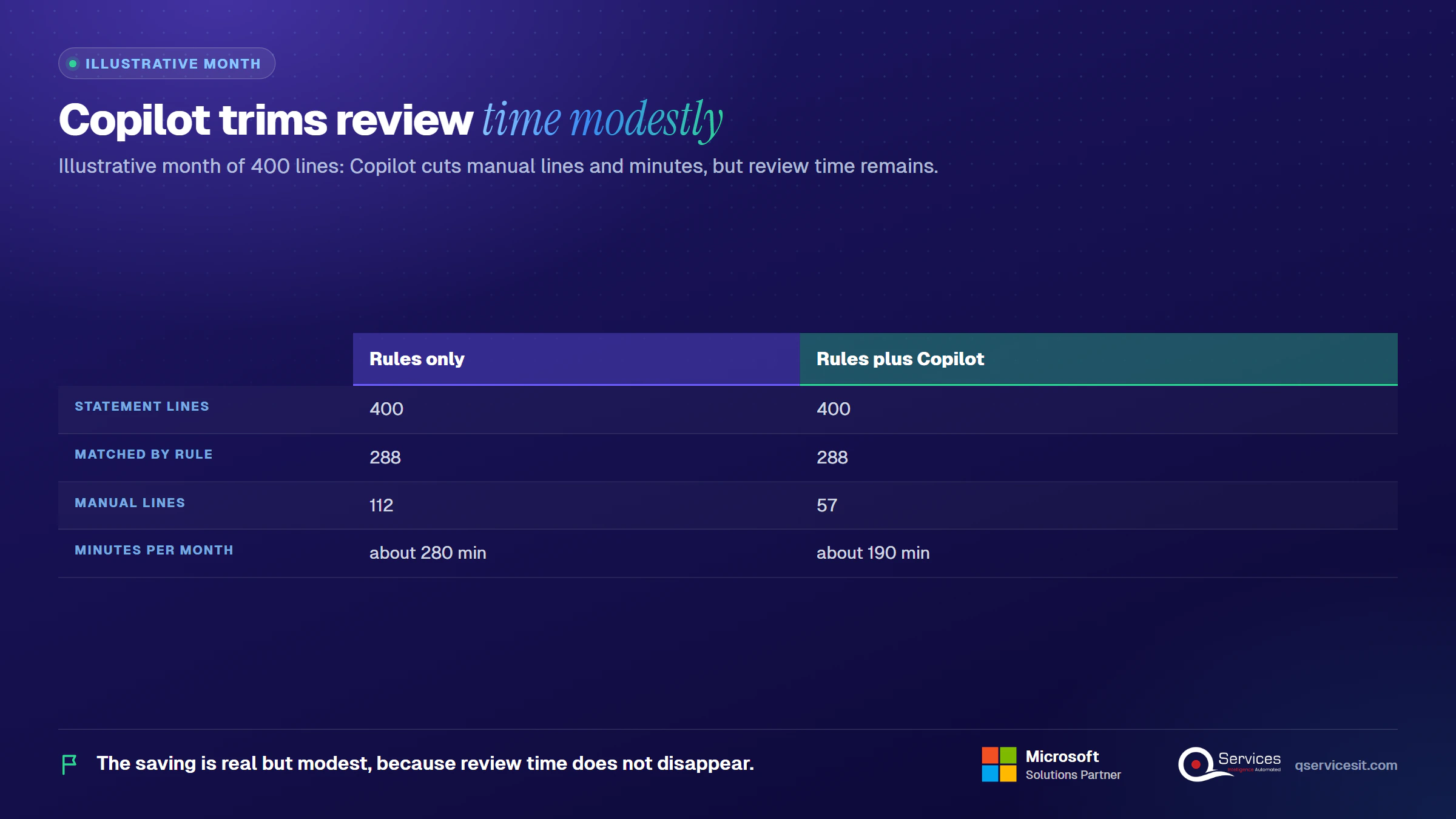
Baseline four numbers before the pilot: minutes per statement line, auto-match percentage, exceptions count and days to close. Do not borrow vendor percentages. Here is an illustrative month of 400 lines, not a client result:
|
Rules only |
Rules plus Copilot |
| Statement lines |
400 |
400 |
| Matched by rule |
288 |
288 |
| Proposed by Copilot |
0 |
64 (55 kept, 9 deleted) |
| Manual lines |
112 |
57 |
| Time at 2.5 min per manual line, 0.75 per proposal |
about 280 min |
about 190 min |
The saving is real but modest, because the review time does not disappear.
How does QServices approach automated bank reconciliation?
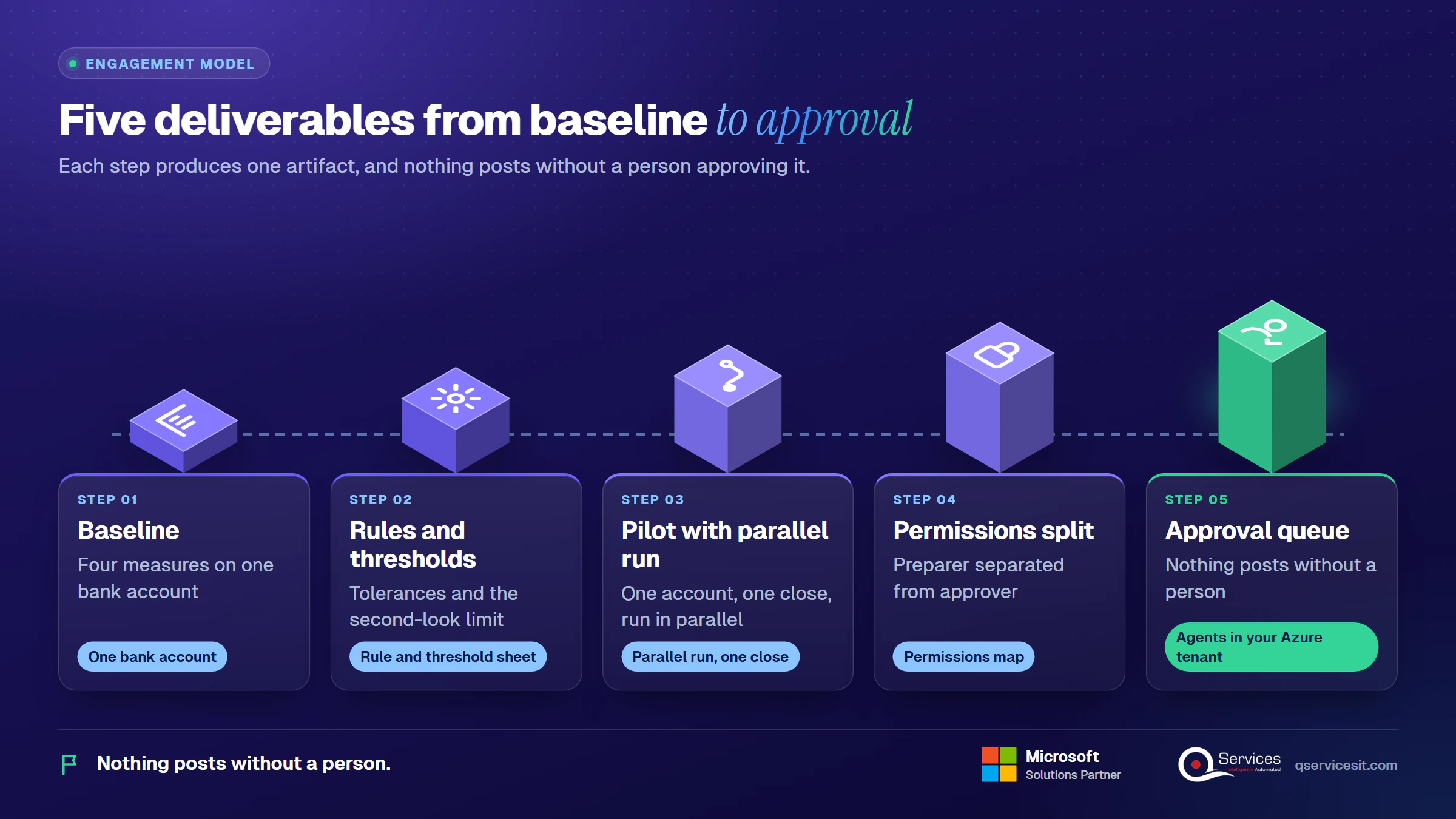
We start at the Review stage, because that is where the control lives, and then build backwards through Automatch and Copilot. As a Business Central partner, we run the same team for build and upkeep.
- A baseline of your four measures on one bank account.
- A rule and threshold sheet covering tolerances and the second-look limit.
- A pilot on one account with a parallel run for one close.
- A permissions map that separates preparer from approver.
- An approval queue, and for gaps Copilot does not cover (multi-bank rules, intercompany, exception routing), agents in your own Azure tenant so nothing posts without a person.
Implementation Checklist
- Business Central online confirmed for the target environment
- Bank account reconciliation capability active on the Copilot & agent capabilities page
- Pages 7250 and 7252 permissions granted to preparers only
- Allow data movement setting reviewed against the Azure OpenAI geography
- Post if fully applied left off
- Preparer and approver are different people for every bank account
- Baseline minutes per line, auto-match percentage, exceptions and days to close recorded
- Parallel run completed on one account with test report filed
What should you do first to start automated bank reconciliation?
Pilot one operating account for one close with a parallel run, and measure auto-match percentage, false-match rate, minutes per statement line and days to close before you add more accounts for automated bank reconciliation. and we will set up the pilot with you.

Written by Rohit Dabra
Co-Founder and CTO, QServices IT Solutions Pvt Ltd
Rohit Dabra is the Co-Founder and Chief Technology Officer at QServices, a software development company focused on building practical digital solutions for businesses. At QServices, Rohit works closely with startups and growing businesses to design and develop web platforms, mobile applications, and scalable cloud systems. He is particularly interested in automation and artificial intelligence, building systems that automate routine tasks for teams and organizations.
Business CentralBank reconciliationERP integrationFinance automation
Talk to Our Experts
Frequently Asked Questions
Related Topics
Next step
Ready to put approval first in year-end?
Bring your current reconciliation steps and we’ll map where Copilot helps and where a person signs off on every posting.














 Trustpilot5.0★★★★★See reviewsGoodFirms5.0★★★★★45 verified reviews
 G25.0★★★★★See reviewsClutch5.0★★★★★Quality 5.0 · Schedule 4.8
 Google4.7★★★★★Mohali office
 Erik BrownBusiness owner and software engineerClient review
 Zoltan BodnarCFO, Yusen LogisticsGoodFirms
 Ranbeer MakinClientClient review
 Alex VanderElsClientClient review
 Philmore J.ClientClient review
 Michael WilliamsonPresident and CEO, United Way of Southeast LouisianaGoodFirms
 Steven LewisClientClient review
 Brian WallerPresident, Technology Association of IowaGoodFirms