How do you set up automatic payment matching in Business Central?
Business Central payment matching runs through the Payment Reconciliation Journal: import the statement, run Apply Automatically, and let Payment Application Rules score each line. Matches hold when the rules are tuned, remittance text carries invoice numbers, and low-confidence lines go to review.
Most AR teams don’t have a matching problem, they have a tuning problem. The defaults work for clean payments and leave the awkward ones sitting as unapplied cash. This guide covers the setup, the rule tiers, the failure points and the controls, with the same cash application automation logic we apply when a team wants fewer manual touches.
How many payments wait on a manual match?
Walk through your Business Central payment rules with our team and see where bundled or unreferenced payments slip past auto-apply.
Quick Answer Business Central payment matching compares each bank statement line with open customer entries, scores the result as High, Medium or Low confidence using Payment Application Rules, and applies the match. You tune the rules, put invoice numbers on remittance text, and send low-confidence lines to a person for review before posting.
How does payment matching work in Business Central?
Payment matching in Business Central is the process where the Payment Reconciliation Journal imports bank lines, compares their text and amounts with open customer ledger entries, and proposes applications. You can review and change every proposal before posting. Once all payments are applied, the bank account reconciles.
The feature does the arithmetic well. What it can’t do is guess what a customer meant when the bank line says nothing useful. That’s why we think of the whole job as one loop.
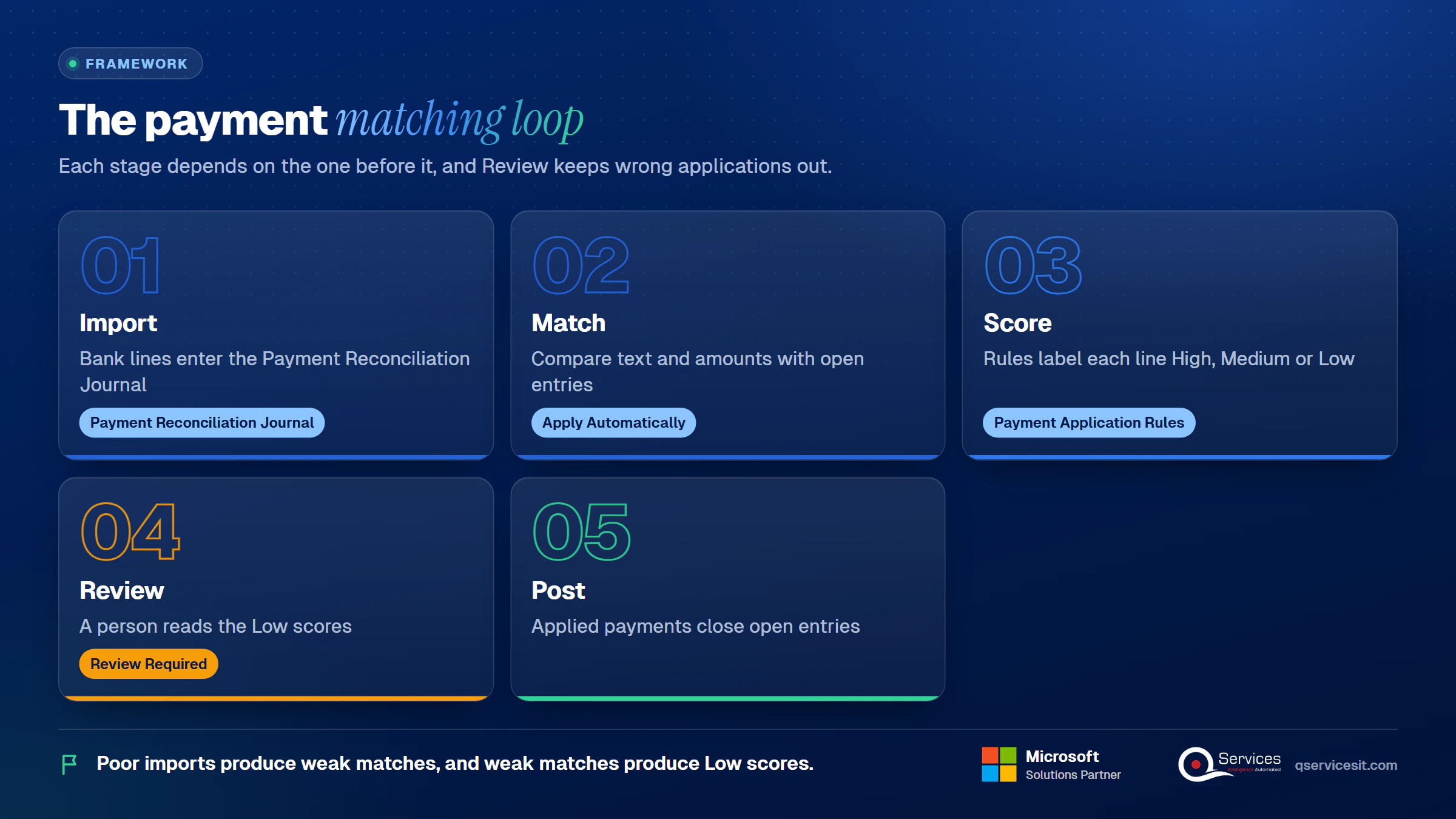
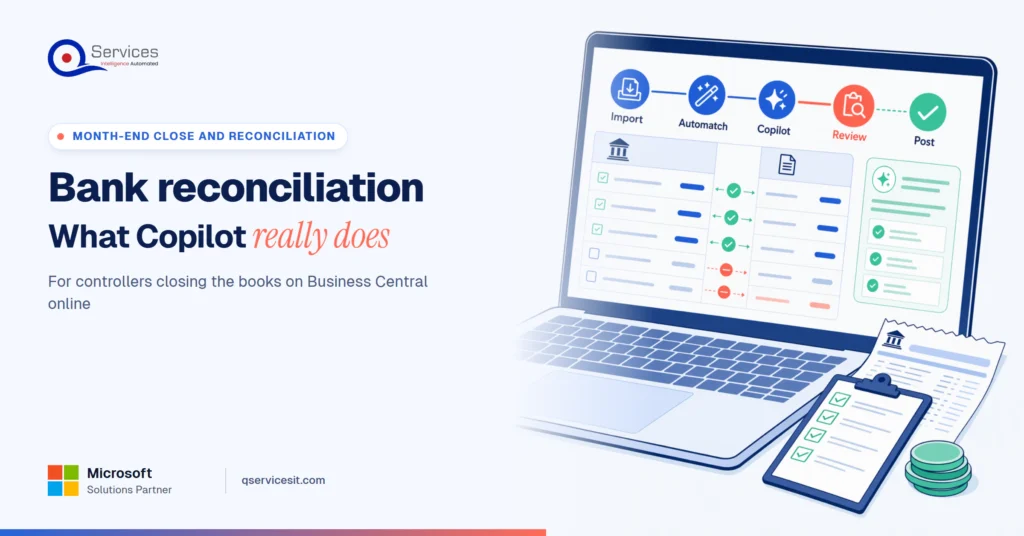
The QServices Framework Payment Matching Loop = Import → Match → Score → Review → Post
Each stage depends on the one before it. Poor imports produce weak matches, weak matches produce Low scores, and only a Review stage that reads the Low scores keeps wrong applications out of the ledger.
What order does Apply Automatically follow?
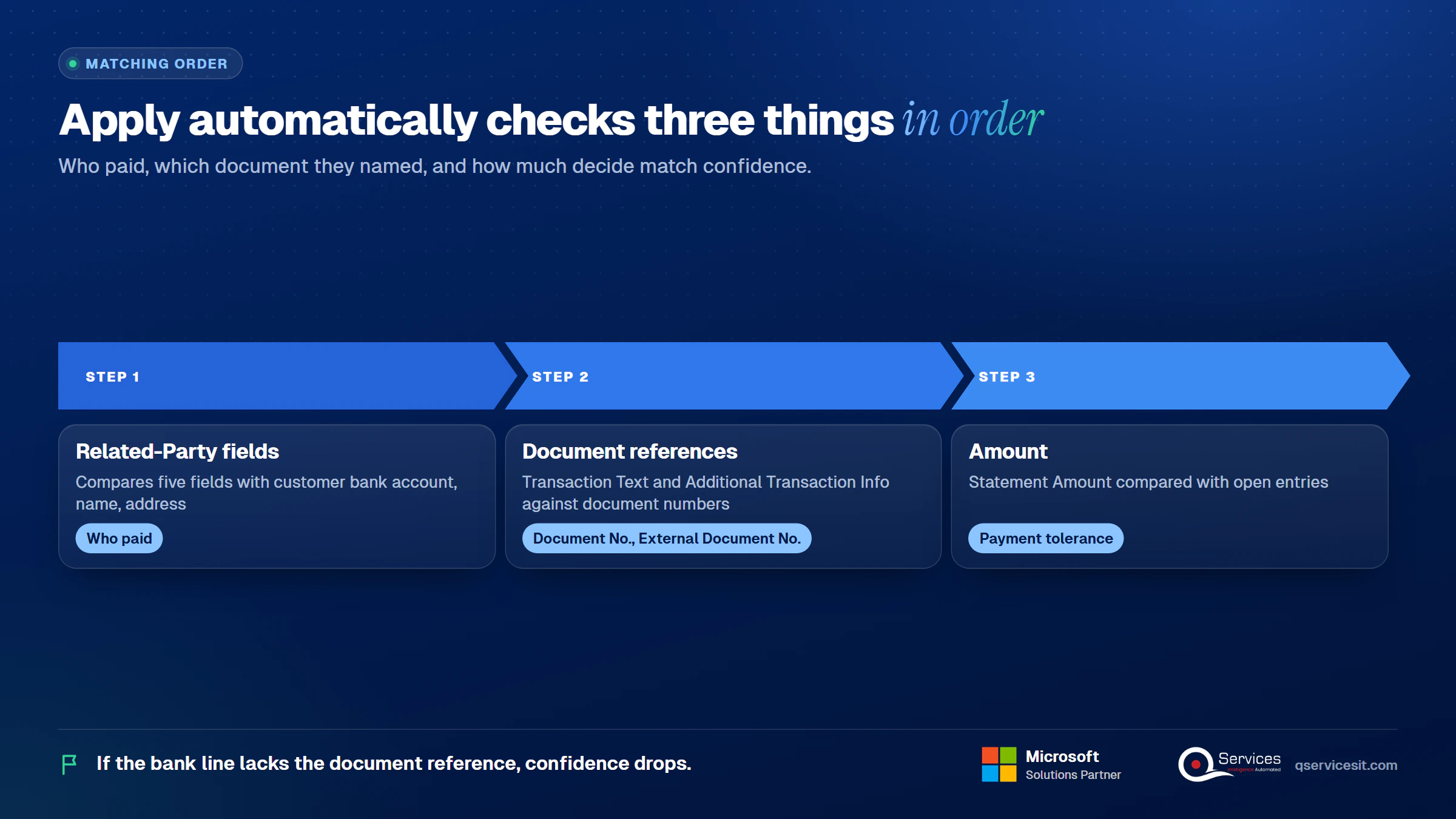
Per Microsoft Learn, Apply Automatically works through three checks, in this order:
- Related-Party fields. It compares text in the five related-party fields with the customer’s bank account, name and address.
- Document references. It compares Transaction Text and Additional Transaction Info with External Document No. and Document No.
- Amount. It compares Statement Amount with open entries, including payment tolerance.
Two details trip people up. Text matching only works on text longer than four characters, so a short reference like INV1 never matches. And the sign decides what gets searched first: negative amounts look at customer invoices first, then vendor credit memos, while positive amounts look at vendor invoices first, then customer credit memos.
Key Insight Apply Automatically doesn’t read minds. It reads three things in a fixed order: who paid, which document they named, and how much. If the bank line is missing the second one, confidence drops straight away.
What must be in place before you import a statement?
Check these before blaming the rules:
- Bank account set up, with a statement file format or a bank feed working
- Payment Application Settings reviewed (more on those below)
- General Ledger Setup: Journal Templ. Name Mandatory, plus Bank Acc. Recon. Template Name and Batch Name if your company requires journals
- Customer bank accounts and names populated on the customer card
- Payment tolerance and payment discount setup done on General Ledger Setup
- Number of Days Included set to 7 or more on feed imports, as Microsoft recommends
Verify these on your version. Microsoft states the standard rule table may differ per implementation, and feed support such as Yodlee varies by region.
How do you set up payment application rules in Business Central?
Which steps set up auto-apply rules?
- Open Payment Application Settings and decide which entry types the Ledger Entries Matching Settings should match.
- Set Candidate Lookback (Days) if the open-entry list is huge. The default of 0 searches all open entries.
- Turn Related Party Name Matching off if your bank statements carry no names, or pick the matching algorithm.
- Open Payment Application Rules and read the rows in priority order. Priority 1 is highest.
- Edit priorities only where a business reason exists, such as ranking a fully matched name with one in-tolerance entry above a partial name match.
- Tick Review Required on Medium and Low rules so those lines land in Lines to Review.
- Import a real statement, run Apply Automatically, and compare results with what your team would have applied.
- If a change makes things worse, choose Restore Default Rules. It’s your undo button.
What do the rule fields mean?
| Field |
Values |
What it controls |
| Match Confidence |
Low, Medium, High |
Score assigned when the rule fires |
| Priority |
1 is highest |
Order rules are evaluated |
| Related Party Matched |
Fully, Partially, No |
How well name or bank account matched |
| Doc. No./Ext. Doc. No. Matched |
Yes, Yes-Multiple, No |
Whether the text named one or several documents |
| Number of Entries Within Amount Tolerance Found |
One, Multiple, None, Not Considered |
Whether the amount singled out an entry |
| Review Required |
Yes or No |
Whether the line appears in Lines to Review |
Should you enable Apply Immediately?
Enable Apply Immediately Rules means a matched rule applies straight away and the system doesn’t hunt for a higher-confidence alternative. It’s faster on big statements. The cost is that a Medium match can win when a better High match was available a few entries further down.
Our rule of thumb: leave it off until your auto-match rate is stable, then turn it on only if statement volume makes the slower search a real problem.
Standards & References
What do match confidence levels mean?
Match confidence tells you how much evidence backed a proposed application. It isn’t a probability. It’s a label from the rule that fired, and when several rules fire, the highest-sorted rule’s confidence applies. In the standard table Microsoft lists 10 High, 9 Medium and 5 Low rules. We condense them to the pattern.
What do High, Medium and Low match confidence mean for your AR team?
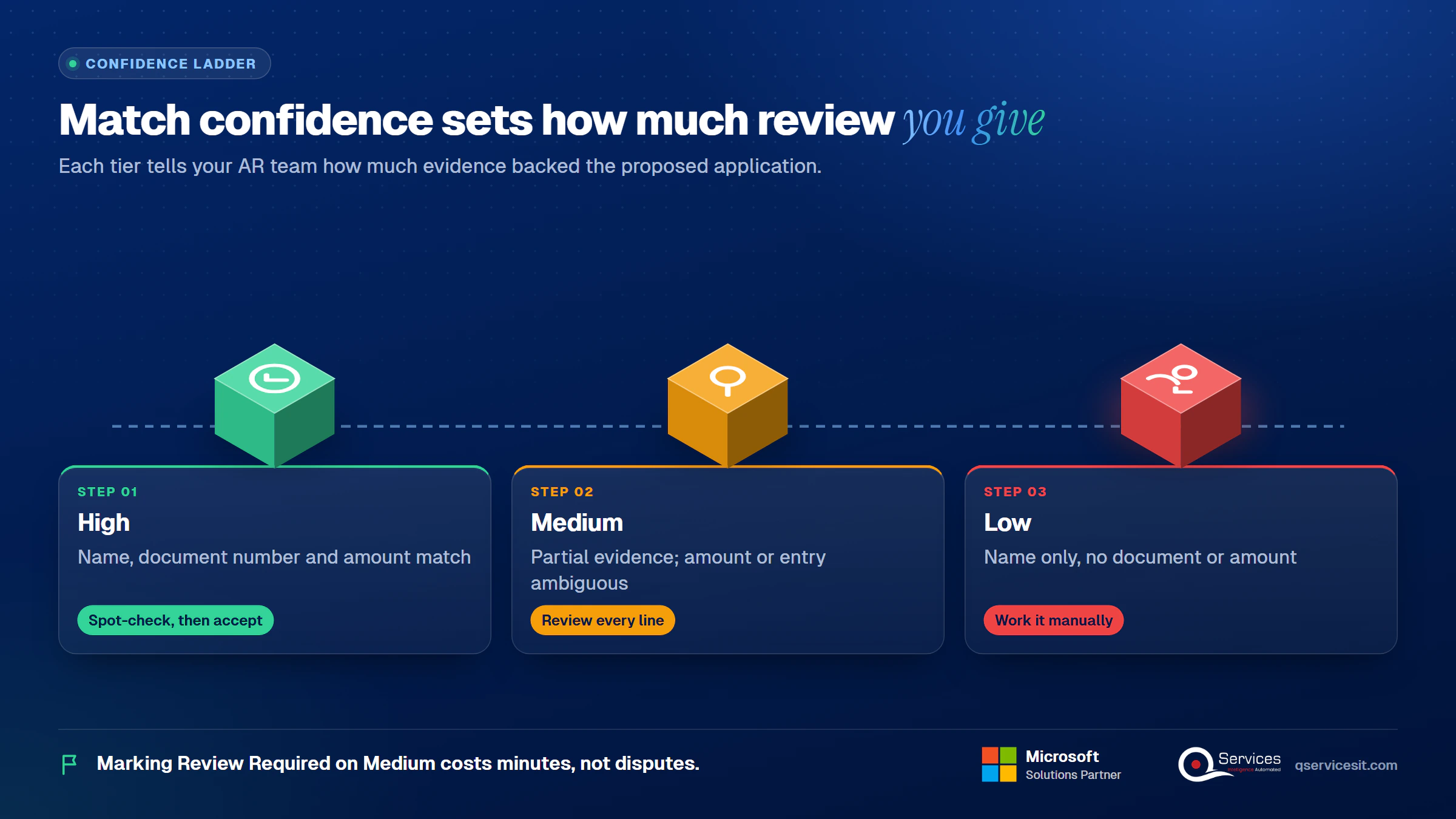
The business central match confidence high medium low split works like this:
| Confidence |
What must match |
What your AR team should do |
| High |
Related party fully matched, document number matched, one entry within amount tolerance (the top rule also covers several document numbers) |
Spot-check a sample, then accept |
| Medium |
Name or document matched, but the amount or the entry is ambiguous |
Review every line before posting |
| Low |
Related party matched with no document or amount match |
Treat as a suggestion and work it manually |
Other values you’ll see in the journal are None, Manual and Accepted. Lines mapped through text-to-account show High – Text-to-Account Mapping.
What does flipping Review Required on Medium change?
Illustrative example on a 20-line statement. Before the change, Review Required is ticked only on Low rules. After Apply Automatically, 11 lines score High, 5 Medium and 4 Low. Your team reviews 4 lines, and the 5 Medium lines post as proposed.
One of those Medium lines was a customer with two open invoices of equal amount. The system picked the older one, the customer meant the newer one, and nobody saw it until the statement went out.
After flipping Review Required to Yes on Medium, 9 lines need a look, the wrong invoice is caught, and review time rises by about 15 minutes. That’s the trade: a few more minutes before posting against a wrong-invoice dispute at month end.
Key Insight Marking Review Required on Medium rules costs minutes on the day. Skipping it costs a customer dispute weeks later, when the wrong invoice is still showing as open.
How do you set up text-to-account mapping for fees and recurring items?
Text-to-account mapping sends bank lines that aren’t customer payments, such as fees and payout adjustments, to a G/L account instead of an open entry. Open it with Map Text to Account from the journal.
How do you set up text-to-account mapping for bank fees in Business Central?
The business central text-to-account mapping setup is short:
- Choose Map Text to Account in the Payment Reconciliation Journal.
- Enter the Mapping Text, up to 50 characters. A partial match is enough if no other payment contains that string.
- Set Bal. Source Type and Bal. Source No., for example G/L Account 60400 for bank charges, as in Microsoft’s example.
- Leave Debit Acc. No. and Credit Acc. No. alone. Those fields are for incoming documents.
Mapped lines aren’t applied to open entries. They post to the account plus a bank ledger entry.
When does text-to-account mapping get overridden?
A mapping applies only if automatic application reaches Low or Medium. A High match overrides it. So a payout line that also matches an invoice at High is applied to the invoice, not the fee account. Keep mapping text specific, such as a processor’s fee wording, to avoid collisions with customer names.
Good candidates for mapping are monthly bank charges, card processor fees, and payout lines from Stripe or PayPal that you book net of fees. Review the mapping list quarterly, because processors change their statement wording.
Where does auto-apply stop on your bank feed?
Bundled remittances and missing invoice numbers are where rules give up. Bring a sample statement and we’ll show how proposed matches reach your review queue.
Why does auto-apply miss bundled payments?
Because the standard function looks for one clear answer per line. Microsoft says a payment can be applied to only one account, and a lump sum can be split across several open entries only if they belong to the same account. Add vague remittance text and the line drops to Low.
All examples below are invented and illustrative.
Real-World Scenario A typical case we see: an AR manager imports a Monday statement with 60 lines. A distributor pays 9,150.00 by ACH with the memo REMIT 03NOV and no invoice numbers. Three open invoices (2,900.00, 3,250.00 and 3,000.00) add up to exactly that amount. Apply Automatically finds the name but no document match, so the line scores Low and sits as unapplied cash. In the Review stage, the AR manager applies all three invoices manually in one pass, then asks the customer to add invoice numbers to the memo next time.
How does a clean 1:1 match look?
Bank line: ACH CREDIT NORTHWIND TRADERS INV-10482 4,200.00. Name matches, Document No. matches, one entry is within tolerance. Result: High. Spot-check and accept.
How does a lump-sum payment covering three invoices behave?
If the memo lists INV-10511, INV-10512 and INV-10513, the rule for multiple document numbers matched can score High. If the memo names none, apply manually. Same account, so one payment splits across the three entries.
What happens with a short-pay when a payment discount was taken late?
Invoice 5,000.00 offers a 2% discount (100.00) if paid by 10 November. The customer pays 4,900.00 on 14 November. Microsoft warns that if the payment is after the due date but was made with a discount, the amount isn’t matched. In Apply Manually, choose between Remaining Amt. Incl. Discount and Remaining Amount, then decide whether to grant the discount or leave 100.00 open. Our short pay tracking guide covers how to log each case.
Why does business central payment matching miss an invoice number?
Business central payment matching missing invoice number is the most common cause of Low scores. Example: WIRE CONTOSO LTD 7,800.00. The name matches fully, but there are two open invoices at 7,800.00. Multiple entries within tolerance, no document match: Low. Only a person (or a remittance PDF read by an agent) can say which invoice it was.
How does the sign rule affect a credit memo and an invoice?
Invoice 6,000.00, credit memo -1,000.00, customer pays 5,000.00. You can’t apply entries with the opposite sign to the payment directly. Apply the credit memo to the invoice first, then apply the payment to the remaining 5,000.00.
How does foreign currency change matching?
The Payment Application page shows amounts in LCY. If your bank account is in local currency and the invoice is in foreign currency, the exchange rates may differ from the bank’s, and Business Central doesn’t handle the gain or loss automatically. Add a manual check: compare the applied LCY amount with the bank amount and post the difference yourself. For tolerance on foreign-currency entries, Microsoft points to the Change Payment Tolerance batch job.
Which exceptions break matching, and what fixes them?
| Symptom |
Likely cause |
Fix |
| Lines not matching at all |
Reference text of 4 characters or fewer, or no names on bank lines |
Ask for full invoice numbers; switch off Related Party Name Matching if names are missing |
| Wrong invoice applied |
Two entries with same amount; Medium rule not set to Review Required |
Tick Review Required on Medium; turn off Apply Immediately |
| Reference absent from the line |
Bank put the data in Additional Transaction Info or nowhere |
Check the import format; request richer remittance data |
| Duplicate imports |
Same statement or feed window imported twice |
Reconcile date ranges before import; delete duplicate lines |
| Opposite-sign entries won’t apply |
Credit memo and payment have different signs |
Apply the credit memo to its invoice first |
| Slow Apply Manually page |
Large open-entry list |
Set Candidate Lookback (Days); use Disable Suggestions for Apply Manually page |
How do you make matches hold week after week?
The matching rules are only half of it. Our weekly loop:
- Put the invoice number on every remittance. Add it to the invoice footer, the customer portal and any lockbox or ACH instructions. See our notes on a good remittance advice.
- Keep the customer master clean: bank account, legal name and known aliases.
- Set payment tolerance for rounding differences and nothing larger.
- Map recurring non-invoice lines with Map Text to Account.
- Each week, review unmatched and Low lines, find the pattern, and fix the cause at the source.
The broader cash application process steps show where this sits in the order-to-cash flow, and our guide to clearing unapplied cash covers backlog cleanup.
How do you review and approve matches before posting in Business Central?
To review payment matches before posting in Business Central, open each flagged line in Apply Manually, tick Applied, adjust Applied Amount for partial or split application, then choose Accept Application so the confidence reads Accepted. Posting then closes the applied entries and updates the customer or G/L accounts.
Use Difference and Transfer Difference to Account when part of a payment belongs in a G/L account and the rest is applied.
Which controls should a Controller set?
- Review thresholds: Review Required on Medium and Low, and a manual look at any High line above an amount you choose.
- Segregation of duties: one person accepts applications, a different person posts the batch.
- Audit trail: keep the exported journal and the Accepted flags with the posting date.
- Month-end check: zero unapplied cash older than your cut-off, or an explained list. Our month end close checklist explains why this delays close.
Which KPIs show whether matching holds?
Use formulas, not borrowed benchmarks:
- Auto-match rate = lines accepted without edits ÷ total lines imported
- Review rate = lines flagged Review Required ÷ total lines
- Time per reconciliation = hours from statement import to posting ÷ statements posted
- Unapplied cash age = report date minus posting date of the oldest unapplied payment
Watch one trap: a wrong-invoice match still counts in the auto-match rate. Sample accepted lines each month to catch it.
Where does an approval-first agent fit?
The standard feature matches on text, names and amounts. It doesn’t read a remittance PDF attached to an email, and it doesn’t reason about a lump sum with no references. Microsoft’s Copilot bank reconciliation (preview, per Microsoft Learn) proposes matches for bank-account reconciliation and can tie one lump-sum line to several ledger entries, but it is a different feature from the Payment Reconciliation Journal, and Copilot and agents run only on Business Central online.
An approval-first agent pre-reads the remittance PDFs and emails, proposes applications for Low and Medium lines, and leaves every proposal waiting for a person. Nothing posts until someone accepts it.
| Approach |
Strength |
Honest downside |
| Standard rules only |
Built in, no extra setup beyond tuning |
Low lines need manual research |
| Rules plus approval-first agent |
Reads remittances the rules can’t; proposals arrive with evidence |
Extra setup, a review queue to staff, and online-only |
| Fully manual |
Full control |
Slowest, and every line costs a person’s time |
Key Insight Whatever reads the remittance, a person approves any action that posts money or changes the ledger. That’s the line we hold with every agent: every payment in its place, and a human signs off.
How does QServices approach Business Central payment matching?
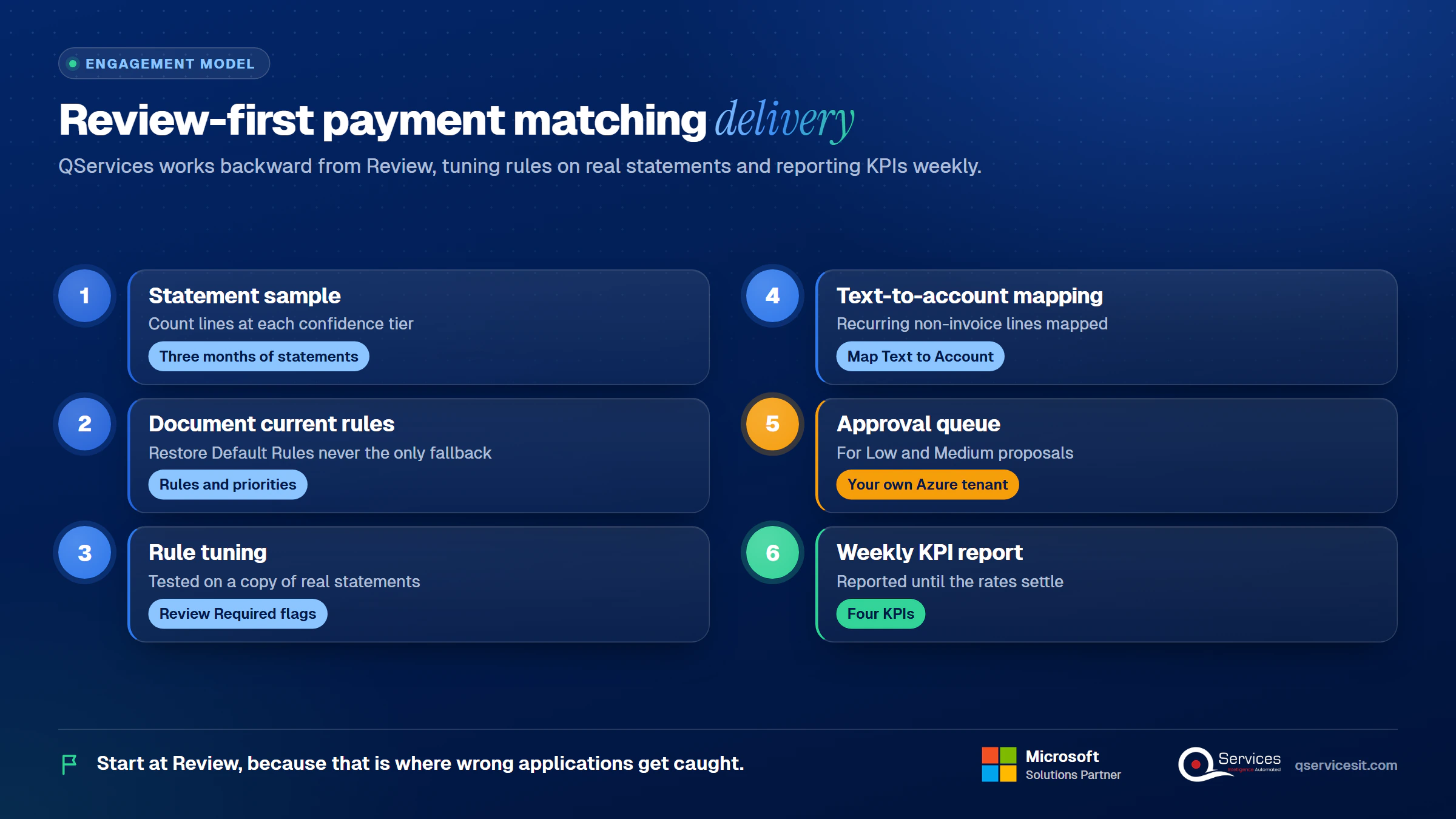
We start at the Review stage and work backward, because that’s where wrong applications get caught. As a Business Central partner, we build and run the same loop with the same team. Delivery runs like this:
- Sample three months of statements and count how many lines land at each confidence tier.
- Document the current rules and priorities, so Restore Default Rules is never the only fallback.
- Tune the Payment Application Rules and Review Required flags on a copy of real statements.
- Build text-to-account mappings for recurring non-invoice lines.
- Add an approval queue, running in your own Azure tenant, for Low and Medium proposals.
- Report the four KPIs weekly until the rates settle.
The accounts receivable reconciliation routine covers what happens after posting.
Implementation Checklist
- Journal Templ. Name Mandatory and the Bank Acc. Recon. Template and Batch Name are set on General Ledger Setup
- Customer bank accounts and legal names are filled in on the customer cards
- Review Required is ticked on Medium and Low rules
- Apply Immediately is off, or you’ve tested it on real statements
- Mapping text exists for bank fees and processor payouts
- Candidate Lookback (Days) is set deliberately, not left at 0 by accident
- Different people accept applications and post the batch
- Auto-match rate and unapplied cash age are tracked weekly
What should you do first to make payment matching hold?
Pilot one bank account: run four weeks of statements through the tuned rules and measure auto-match rate, review rate, time per reconciliation and unapplied cash age. and we’ll tune the rules on your own statements, with your team approving every match.

Written by Rohit Dabra
Co-Founder and CTO, QServices IT Solutions Pvt Ltd
Rohit Dabra is the Co-Founder and Chief Technology Officer at QServices, a software development company focused on building practical digital solutions for businesses. At QServices, Rohit works closely with startups and growing businesses to design and develop web platforms, mobile applications, and scalable cloud systems. He is particularly interested in automation and artificial intelligence, building systems that automate routine tasks for teams and organizations.
Accounts receivableCash applicationERP integrationFinance automation
Talk to Our Experts
Frequently Asked Questions
Related Topics
Next step
Ready to put every payment in its place?
Talk with our team about approval-first agents that propose matches inside Business Central while your people approve before anything posts.




















 Trustpilot5.0★★★★★See reviewsGoodFirms5.0★★★★★45 verified reviews
 G25.0★★★★★See reviewsClutch5.0★★★★★Quality 5.0 · Schedule 4.8
 Google4.7★★★★★Mohali office
 Erik BrownBusiness owner and software engineerClient review
 Zoltan BodnarCFO, Yusen LogisticsGoodFirms
 Ranbeer MakinClientClient review
 Alex VanderElsClientClient review
 Philmore J.ClientClient review
 Michael WilliamsonPresident and CEO, United Way of Southeast LouisianaGoodFirms
 Steven LewisClientClient review
 Brian WallerPresident, Technology Association of IowaGoodFirms