


AR aging report: how to read each bucket and act
Read your AR aging report bucket by bucket, see the action for each one, and learn why the 1 to 30 day bucket is where your team collects the most cash.
Home » AR aging report: how to read each bucket and act
To read an AR aging report, check which date it ages from, then start at the oldest bucket and your largest customers and open the invoices behind each total. Every bucket (Current, 1 to 30, 31 to 60, 61 to 90, 90+) gets its own action.
Most teams scroll the totals, feel uneasy about the right-hand columns, and move on. Our accounts receivable collections work starts with a sample report and one action next to each bucket, so the report becomes a to-do list instead of a snapshot.
Which bucket is your cash really stuck in?
We walk through your aging report with you, find the unapplied cash and open disputes skewing it, and show where an agent would help. A person approves every action.
Book the AR Cash Assessment →Quick Answer An AR aging report lists every open invoice and groups the balance by how long it has been outstanding. To read AR aging, confirm the date basis, scan from the oldest bucket and biggest customers first, then open the invoices behind each total and assign one action per bucket.
An accounts receivable aging report lists each open invoice and sorts the balance into buckets by age. It is a snapshot at one as-of date. It tells you what is late, not why.
The same report goes by other names: aged receivables report, accounts receivable aging schedule, or aging report accounts receivable. The layout is nearly the same in every system.
Start with the date basis, because software differs. Dynamics 365 Finance lets you base the report on transaction date, due date or document date. QuickBooks offers a summary (one row per customer) and a detail report (each transaction and how late it is).
Our method for AR aging analysis is a five-stage path. This framework is our own editorial recommendation, not a standard.
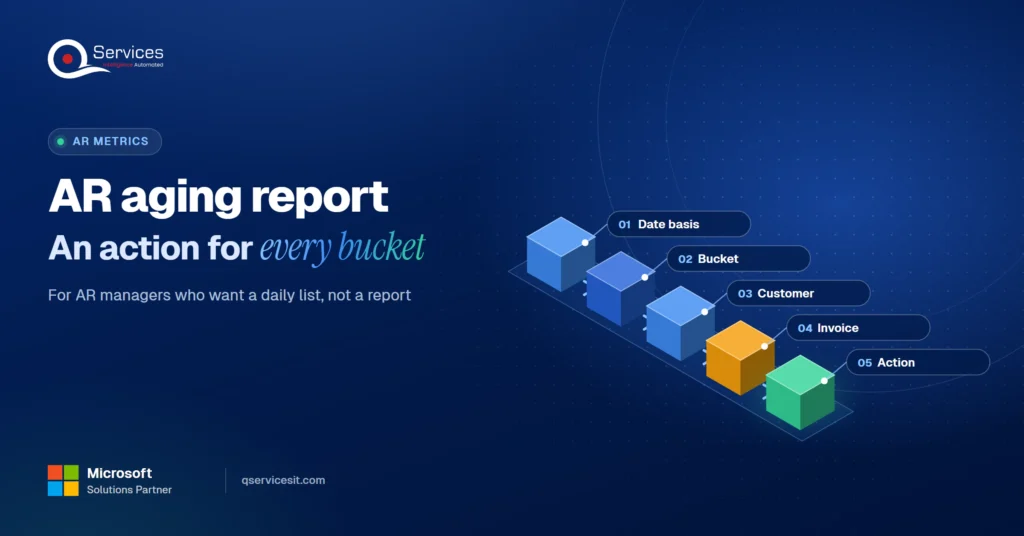
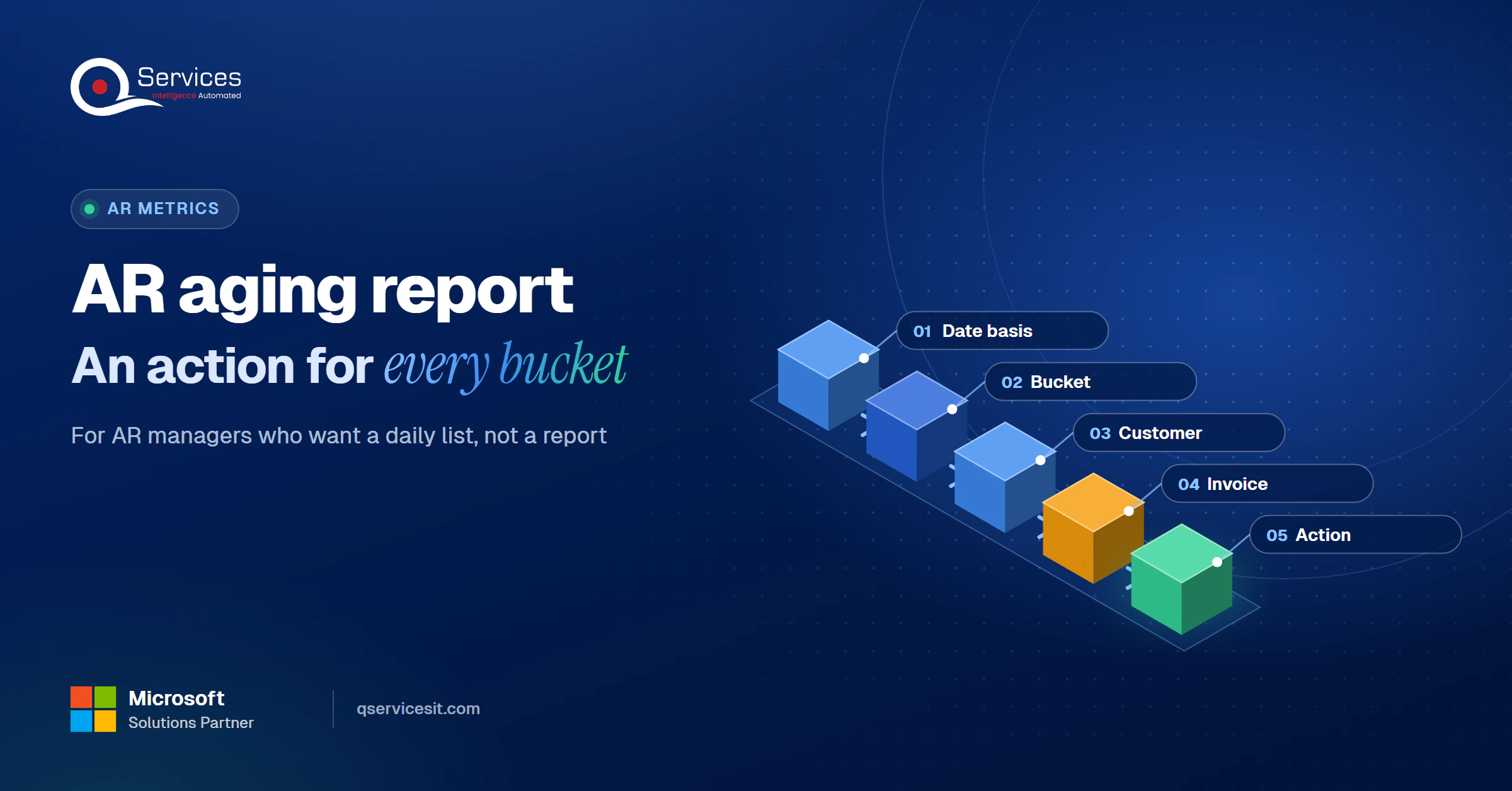
The QServices Framework Read AR Aging = Date basis → Bucket → Customer → Invoice → Action
Check the date basis first or every bucket comparison is wrong. Then go from bucket to customer to invoice, because a customer total can hide several invoices.
Age from the contractual due date. Metabase’s metric definition is days overdue = as-of date minus due date. Use invoice-date aging only when you want invoice age.
| Due-date aging | Invoice-date aging | |
|---|---|---|
| Answers | How overdue is it? | How old is it? |
| Current bucket | Not yet due | Often empty or tiny |
| Fit for collections | Strong | Weak |
| Setup effort | Higher: needs clean terms on every invoice | Lower: invoice date always exists |
| Risk | Wrong terms on a customer record misplace invoices | Net-60 invoices look late when they are not |
The honest downside: due-date aging is worse on effort. It is only as good as the payment terms in your customer master.
The standard split is Current, 1 to 30, 31 to 60, 61 to 90 and 90+ days past due. This is AR aging buckets explained in one line: risk rises as you move right.
Not yet due. Nothing to chase, but check that terms are right and the invoice reached the customer.
Usually a clerical slip, a missed invoice or a missing PO. These are the easiest dollars to collect.
The customer has had two chances. Something is blocking payment, so find out what.
Collection odds are falling and a dispute or cash problem is likely behind it.
Collection becomes recovery. Decide on terms, credit status, escalation or write-off.
Key Insight CRF’s National Summary of Domestic Trade Receivables (Q2 2026) shows 87.92% of receivables current and only 0.40% over 91 days past due. In a typical ledger, the recoverable fight is in the early past-due buckets.
CRF members are mostly larger credit-granting firms, so your ledger may look different. Published collection-probability tables fall with age, but the numbers differ by source, method and whether they count dollars or invoices. Treat them as direction, not a promise.
No authoritative source gives a bucket-by-bucket playbook. The actions below are QServices’ own recommendation, built on dunning practice most vendor guides roughly agree on.
| Bucket | Typical cause | Action |
|---|---|---|
| Current | Normal float | Confirm invoice delivery and PO match |
| 1 to 30 | Clerical slip | Friendly reminder, resend invoice, confirm payment date |
| 31 to 60 | Blocked approval | Call the AP contact, firmer email, log the promise date |
| 61 to 90 | Dispute or cash strain | Escalate to the customer’s manager, offer a payment plan |
| 90+ | Chronic or insolvent | Review terms, hold new orders, decide on escalation |
Send a short, polite message the same week the invoice goes past due, and attach the invoice again. Most vendor guides suggest 4 to 6 touches before external escalation. Exact schedules differ and none is a standard.
This bucket is where you win because the cause is usually cheap to fix and the customer still intends to pay. Fix it here and your days sales outstanding improves without a single hard conversation.
Switch from reminders to conversation. Ask what is stopping payment, get a dated promise, and pause dunning on any invoice with an open dispute. Move the account to a named owner so it does not sit in a shared inbox.
Is your aging report telling the truth?
Unapplied cash and open disputes inflate the older buckets. Book an assessment and we will show what your report looks like once payments sit where they belong.
Book the AR Cash Assessment →An aging report can be wrong in both directions. Money that has arrived stays in old buckets, and disagreements look like plain lateness.
Systems treat unapplied cash differently. Adagio treats it as current, Sage 300 can show it in a separate column, and JD Edwards has an Age Credits option. Dynamics 365 has Payment positioning to show unsettled payments in the first column.
So a paid invoice can still sit in 61 to 90 while the cash waits unmatched. Missing remittance data, short payments and mismatched invoice references are the usual causes. Our guide to clearing unapplied cash covers the backlog, and a good remittance advice prevents much of it.
Real-World Scenario A typical case we see: an AR manager at a distributor opens the report and sees $180,000 in 61 to 90, split across three customers. The collectors start calling. Two of those customers paid last month with remittances that did not name invoice numbers, so $95,000 sits unapplied. The naive approach damages the customer relationship. The Customer and Invoice stages of the framework catch it, because opening the invoices behind the total shows the matching cash.
A standard report cannot tell disagreement from lateness. A disputed invoice sits in 31 to 60 and gets dunned like any other, which annoys the customer and wastes calls. Tag disputes with a reason code and an owner, and report them separately. Dynamics 365’s aging snapshot reports disputed counts and amounts per customer.
Standards & References
- Dynamics 365 Finance accounts receivable documentation: how aging date bases and payment positioning work
- CRF National Summary of Domestic Trade Receivables: quarterly DSO and aged-receivable benchmarks
The aging report is a monthly view. Collectors need a daily one.
Run the full report at least monthly and the working list daily. Ranked worklists by payment probability are common in AR software, though claims such as 30% collector efficiency are vendor claims, so test them on your own ledger.
We start at the Date basis and Invoice stages, because bad inputs make every bucket wrong. Our AI agents run in your own Azure tenant, inside your ERP, and a person approves every action before anything posts or any dunning email goes out. Our accounts receivable automation team builds and runs it.
For matching the cash itself, see our cash application services and the cash application process steps.
Implementation Checklist
- Aging report uses the contractual due date
- Payment terms verified on every active customer
- Unapplied cash shown in its own column
- Disputed invoices tagged with a reason code and owner
- 1 to 30 invoices get a reminder within 7 days of going past due
- Every 61 to 90 account has a named owner
- Daily list refreshes each morning

AR aging only pays off when each bucket has an owner and an action, and the 1 to 30 bucket is the best place to start. Pilot it on one customer segment for 30 days and measure the roll rate into 31 to 60, days to collect on 1 to 30 invoices, and unapplied cash. Then Book the AR Cash Assessment and we’ll review your current report with you.

Written by Rohit Dabra
Co-Founder and CTO, QServices IT Solutions Pvt Ltd
Rohit Dabra is the Co-Founder and Chief Technology Officer at QServices, a software development company focused on building practical digital solutions for businesses. At QServices, Rohit works closely with startups and growing businesses to design and develop web platforms, mobile applications, and scalable cloud systems. He is particularly interested in automation and artificial intelligence, building systems that automate routine tasks for teams and organizations.
An AR aging report lists every open customer invoice and groups the balance by how long it has been outstanding, usually Current, 1 to 30, 31 to 60, 61 to 90 and 90+ days. It is a snapshot at one date. It shows what is late, not why.
Confirm whether it ages from the due date or invoice date. Then scan the oldest bucket and your largest customers first, open the invoices behind each customer total, and assign one action per bucket. A summary row can hide several invoices, so always check the detail.
Run the full report at least monthly and keep a refreshed working list daily. The monthly view shows trends in each bucket, while the daily list tells collectors which invoice to act on today, starting with 1 to 30 days past due.
Usually the payment arrived but was never applied to the invoice. Missing remittance data, short payments and mismatched invoice references leave cash unapplied, and systems treat it differently. Check for unapplied cash before calling the customer.
Start with the date basis and customer payment terms, separate unapplied cash and disputes, then work the 1 to 30 bucket daily. If you want help, the AR Cash Assessment reviews your current report and proposes actions, with your team approving anything that posts.

Read your AR aging report bucket by bucket, see the action for each one, and learn why the 1 to 30 day bucket is where your team collects the most cash.
Short pay explained: why customers pay less than the invoice, the common reason codes, and a simple flow from short pay to credit memo or recovery.
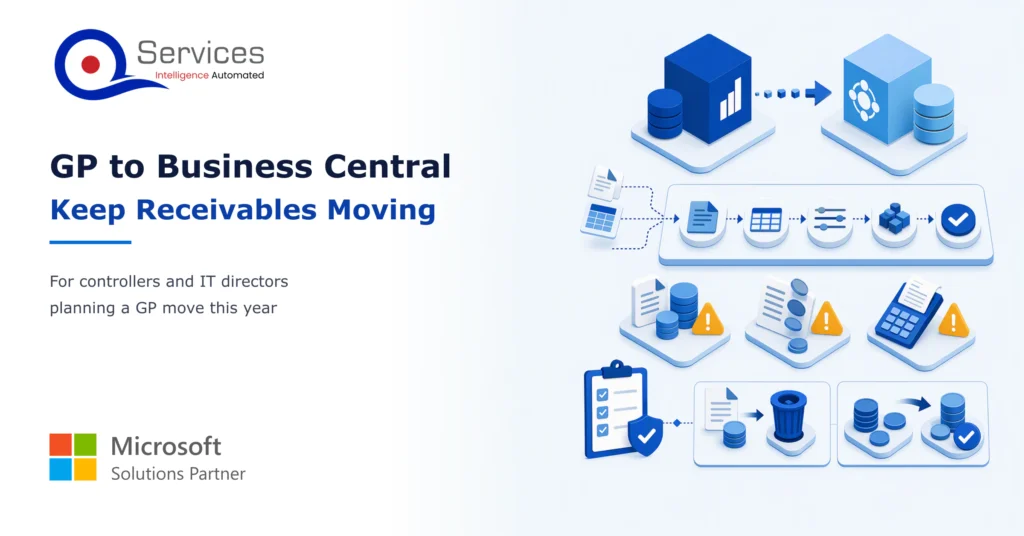
Moving from Dynamics GP to Business Central? Learn how to clean, load and cut over open invoices and balances so your AR team keeps collecting.

Reduce DSO without adding headcount. Six fixes ranked by effort, from same-day cash application to cleaner invoices and faster dispute resolution.
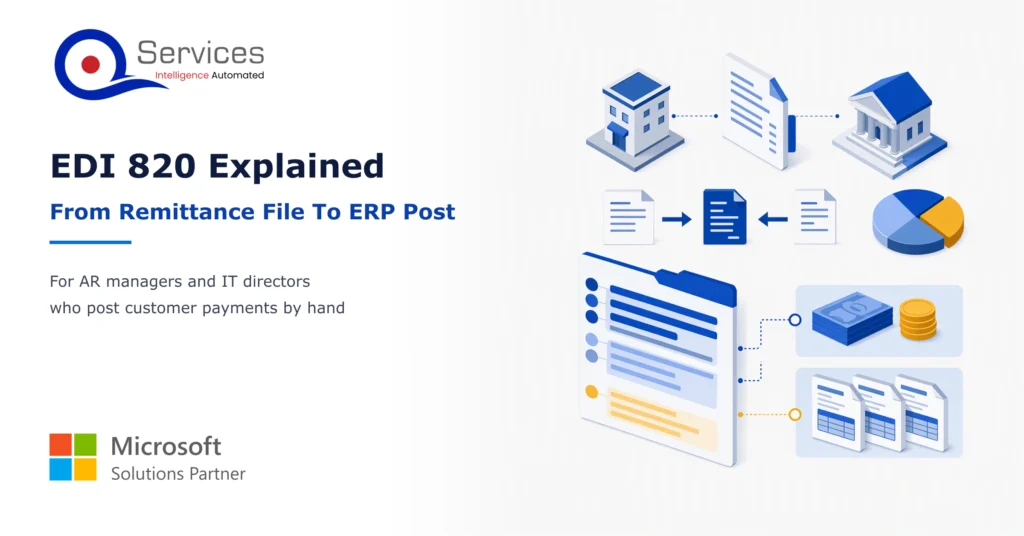
Learn to read an EDI 820 segment by segment, match it to the invoices it pays, and post it cleanly in SYSPRO, Epicor or Business Central.

Copilot Studio agents can read remittances, take orders from email and triage tickets. See what each needs from your ERP and where a person approves.

Next step
Ready to turn aging into a daily list?
Bring a recent aging export. We will map each bucket to an action and show how agents work inside your ERP while your team approves each step.
Book the AR Cash Assessment →
Read your AR aging report bucket by bucket, see the action for each one, and learn why the 1 to 30 day bucket is where your team collects the most cash.
Short pay explained: why customers pay less than the invoice, the common reason codes, and a simple flow from short pay to credit memo or recovery.
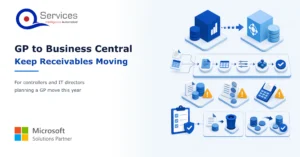
Moving from Dynamics GP to Business Central? Learn how to clean, load and cut over open invoices and balances so your AR team keeps collecting.

Reduce DSO without adding headcount. Six fixes ranked by effort, from same-day cash application to cleaner invoices and faster dispute resolution.
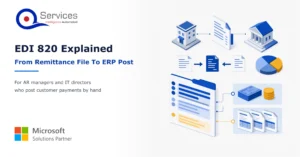
Learn to read an EDI 820 segment by segment, match it to the invoices it pays, and post it cleanly in SYSPRO, Epicor or Business Central.

Copilot Studio agents can read remittances, take orders from email and triage tickets. See what each needs from your ERP and where a person approves.

Every quote comes from a published review on GoodFirms, Clutch or our own site. Click a source to read the full review.

Trustpilot5.0★★★★★See reviewsGoodFirms5.0★★★★★45 verified reviews

G25.0★★★★★See reviewsClutch5.0★★★★★Quality 5.0 · Schedule 4.8

Google4.7★★★★★Mohali office“QServices was highly professional, knowledgeable, and approachable. We continue to work with them on other projects.”
“Quality assurance is often overlooked, but these guys take that very seriously. … their team of experienced, dedicated developers and highly skilled engineers quickly dissected and decomposed every problem and presented solutions and options that directly met my needs”

Erik BrownBusiness owner and software engineerClient review“The supplier delivered the application on time and was responsive to our needs. He was also flexible, which allowed us to make changes on the fly.”

Zoltan BodnarCFO, Yusen LogisticsGoodFirms“Thank you Sahil and team for wonderful collaboration right from day 0. … Highly recommend the developers.”

Ranbeer MakinClientClient review“They are always looking for new ways to improve their products and services and to deliver value to their customers.”
“I have had an excellent experience working with QServices. We have a highly collaborative relationship and I value them not just as contractors but as partners.”

Alex VanderElsClientClient review“Sahil undertakes every project with a high degree of professionalism. His communication style is unmatched and he is always available to resolve issues or just discuss the project.”

Philmore J.ClientClient review“Responsive, patient and professional. Consistent weekly attention to our project, and new ideas we hadn't asked for.”

Michael WilliamsonPresident and CEO, United Way of Southeast LouisianaGoodFirms“I have been working with them on a project for a year now … They have been able to solve problems that come up with bugs or development and able to communicate well with me.”

Steven LewisClientClient review“We had been working on the app for two years. QServices built it in two months.”

Brian WallerPresident, Technology Association of IowaGoodFirms“All projects were delivered on time and were fully completed upon delivery.”
“They had excellent quality. The hypercare they provided after the project went live is exceptional.”

Founder and CEO

Chief Sales Officer