What is cash application, and why does it matter?
Cash application is the process of matching each incoming customer payment to the open invoices it pays, then posting that match to the accounts receivable ledger. Until it's done, the customer still looks like they owe you money. Done well, it takes hours, not days.
Cash application is the matching of received customer payments (checks, ACH, wires, cards, lockbox files) to specific open invoices, credit memos and deductions, followed by posting the result to the AR sub-ledger and the bank account. Applied cash closes invoices and lowers the customer's balance. Cash that can't be matched sits in unapplied cash until someone resolves it.
Process described per Microsoft Learn: automatic payment application in Business Central.
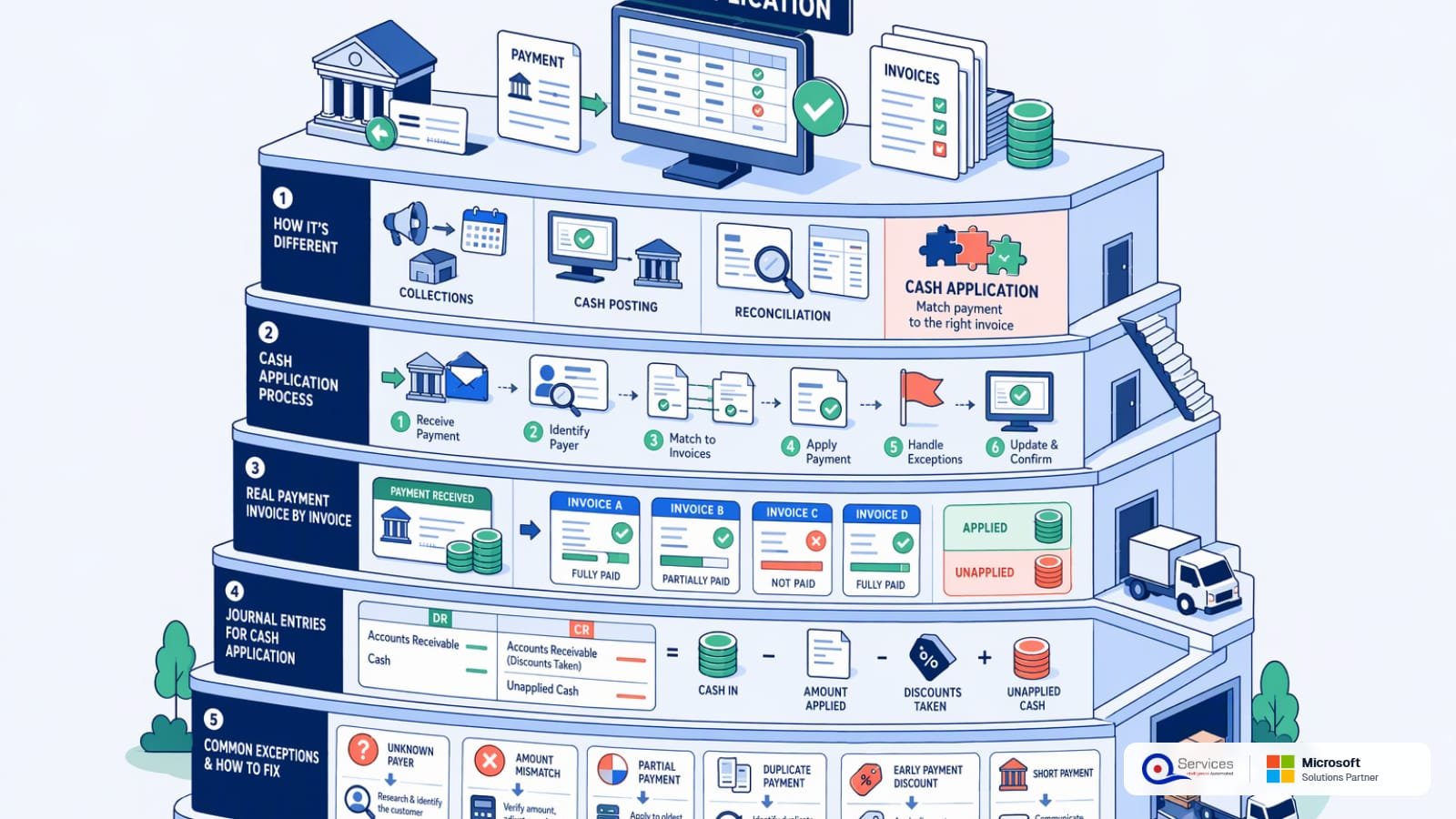
Collections chases money that hasn't arrived. Cash application starts when money has arrived.
Cash posting is the narrower step: recording that a deposit hit the bank and the ledger. Cash application is the matching decision on top of it, which invoice does this money pay?
Bank reconciliation is a different control. It proves the ERP bank balance equals the bank statement. A payment can reconcile perfectly and still be applied to the wrong invoice.
Where it sits in order-to-cash: order, ship, invoice, collect, receive payment, apply cash, reconcile. Apply cash is the hinge between the customer's money and your AR aging.
Why it matters: collectors work from the aging report. If a customer paid on Monday and the payment isn't applied until Friday, a collector may phone them about an invoice they already paid. That's an avoidable, awkward call.
The numbers feed other metrics too. Unapplied cash overstates AR, which makes DSO look worse than it is and hides which invoices are truly late.
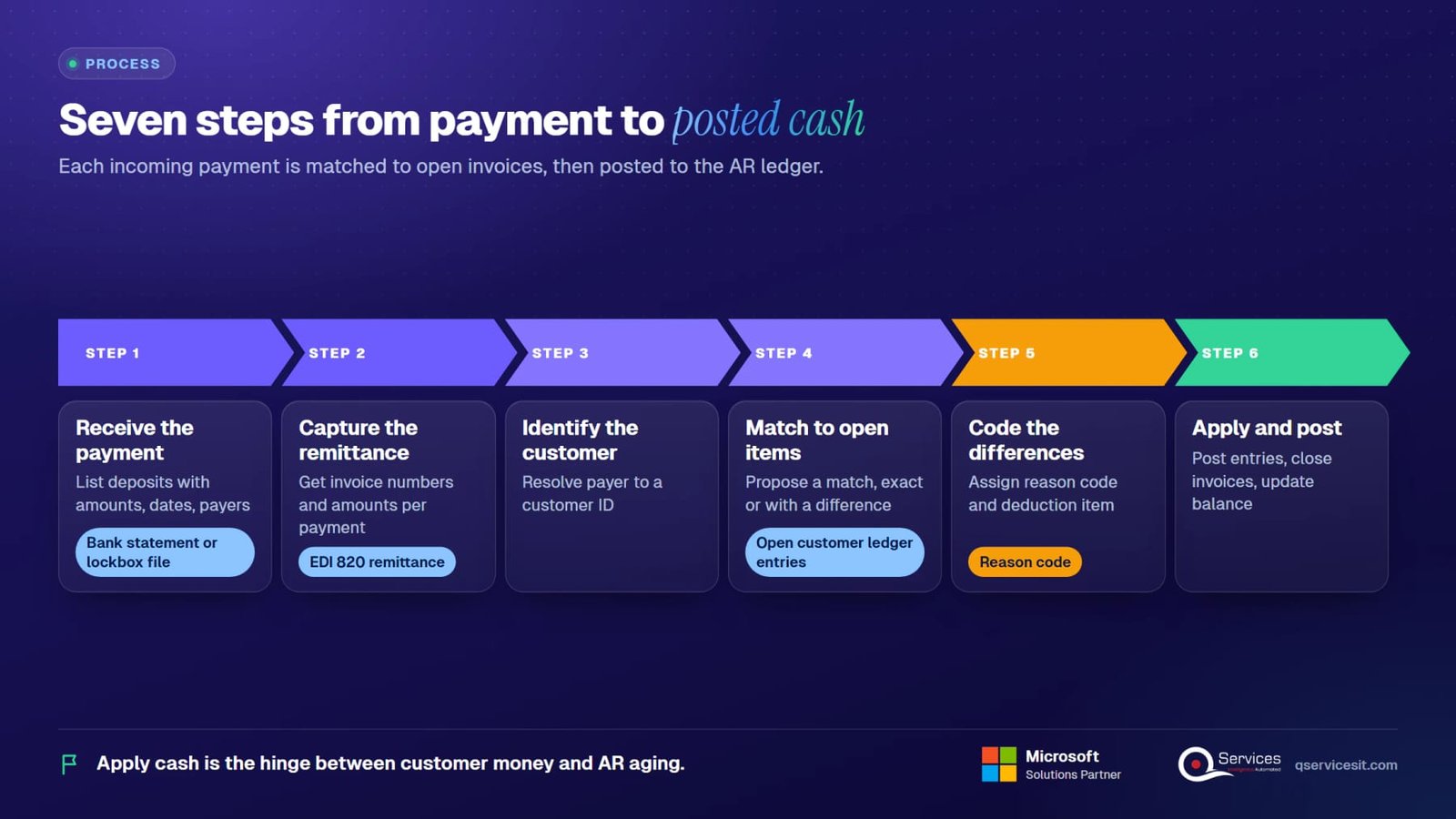
Seven steps, each with an owner, an input and an output. The owner column is what we see in most finance teams before automation.
Owner: treasury or AR clerk. Input: bank statement, lockbox file, EDI 820, card or ACH report. Output: a list of deposits with amounts, dates and payer names.
Owner: AR clerk. Input: remittance emails, PDFs, portal downloads, or an EDI 820 remittance. Output: invoice numbers and amounts per payment. See the remittance advice guide.
Owner: AR clerk. Input: payer name, bank account, reference. Output: a customer ID. Payers often differ from the bill-to, so this step catches parent and subsidiary mismatches.
Owner: AR clerk or ERP rules. Input: payment, remittance, open customer ledger entries. Output: a proposed match, exact or with a difference.
Owner: AR specialist. Input: any gap between payment and invoices. Output: a reason code (discount, damage, pricing, freight) and a deduction or write-off item.
Owner: AR clerk, approver for exceptions. Input: approved match. Output: posted ledger entries, closed invoices, updated balance.
Owner: AR lead. Input: unapplied cash list, KPIs. Output: resolved items, auto-match rate, days to apply. The unapplied cash guide covers the backlog clean-up.

Illustrative numbers. A customer on 2/10 net 30 terms sends one $12,500 ACH with a remittance listing three invoices. The invoices total $12,800, so the payment is $300 short.
| Invoice | Billed | What the customer paid | Difference and code |
|---|---|---|---|
| INV-1001 | $5,000 | $4,900 | $100: 2% early-pay discount, paid within 10 days (code DISC) |
| INV-1002 | $4,800 | $4,600 | $200: customer claims damaged goods (code DMG, open deduction) |
| INV-1003 | $3,000 | $3,000 | None, exact match |
| Total | $12,800 | $12,500 | $300 short: $100 discount plus $200 deduction |
Result: all three invoices close. INV-1002 is closed against a $200 deduction item that stays open until the claim is approved, credited or billed back. The customer's open balance is $200 (the deduction), not $300. The $100 discount is expected under the terms, so it needs no chase.
Matched payment, exact: Dr Bank, Cr Accounts Receivable for the amount applied. Cash goes up, AR goes down.
Using the example above: Dr Bank $12,500, Dr Sales Discounts $100, Dr Deductions (a receivable-type clearing account) $200, Cr Accounts Receivable $12,800. If policy is to write off small gaps instead of tracking a deduction, the $200 goes to Dr Write-off Expense instead.
Payment you can't match yet: Dr Bank, Cr Unapplied Cash. The cash is recorded the day it arrives, but no invoice is closed.
When you find the match: Dr Unapplied Cash, Cr Accounts Receivable. This reclass entry is what actually closes the invoice. Many ERPs do this automatically when you apply.
Overpayment: the customer sends $5,300 against a $5,000 invoice. Apply $5,000 (Dr Bank, Cr AR), and carry the extra $300 as a credit on account: Dr Bank, Cr Customer Credit (or leave it unapplied) until you refund it or apply it to the next invoice.
Check your own chart of accounts and your auditor's policy for where discounts, deductions and write-offs post. The pattern is standard; the account names are yours.

Six exception types cover most of the work that doesn't match on the first pass.
| Exception | Typical cause | Fix |
|---|---|---|
| Short pay | Dispute, damage, pricing difference, tax or freight disagreement | Apply the payment, open a coded deduction, route to the owner for dispute or credit |
| Overpayment | Duplicate payment, paid a credit memo's invoice in full, rounding | Hold as credit on account, then refund or apply to the next invoice, with approval |
| Missing remittance | Customer paid without sending details, or the email went to the wrong inbox | Match on amount and open items, ask the customer, post to unapplied cash if still unclear |
| Lump-sum, multiple invoices | One payment for dozens of invoices, no breakdown | Find the combination of open invoices that sums to the amount, confirm with the customer |
| Early-pay discount | Customer takes the discount after the window closed, or deducts the wrong percentage | Allow if within terms, otherwise short-pay code and bill back |
| Foreign-currency difference | Exchange rate moved between invoice date and payment date | Apply at payment-date rate, post the realized gain or loss, code small gaps to FX |
Business Central gives you two main paths. Both end with customer ledger entries closed against the payment.
Path one is the Cash Receipt Journal. You enter the payment against the customer, then use Apply Entries to pick the open invoices. Posting closes the matched customer ledger entries and creates the bank entry.
Path two is the Payment Reconciliation Journal. You import a bank statement or use a bank feed, and the Apply Automatically action proposes matches using payment application rules. Each proposed line gets a match confidence from low to high, and you can change anything before posting.
Unmatched lines go to Apply Manually, which opens the Payment Application page with candidate entries. Posting closes the applied entries and creates the bank account ledger entries. Per Microsoft Learn, Business Central also recognizes bank entries already posted, which helps prevent double posting.
Where it stops: the rules match on data in the bank line, such as invoice numbers in the text and amounts. A lump sum with no reference, or a payment with a coded deduction buried in a PDF, still ends up with a person. Microsoft notes the rules differ by implementation, so tune them rather than assume the defaults fit.
Dynamics GP: you enter the receipt in Cash Receipts Entry. The Apply button opens the Apply Sales Documents window, where you pick the invoices. You can also post a receipt unapplied and apply it later from Transactions, Sales, Apply Sales Documents. Per Microsoft's Receivables Management guide, transaction activity is where applied and unapplied documents are managed. Check the multicurrency rules: Microsoft's support note says documents must share the originating currency ID to apply.
NetSuite: you record a Customer Payment and use the Apply sub-tab to select invoices. The Auto Apply box applies the amount to the oldest open receivable, which is fine for simple payments and wrong when the customer paid specific invoices. See Oracle's customer payment help.
In NetSuite, an overpayment creates a customer deposit for the remainder, and you can apply existing deposits from the Deposits sub-tab on a later payment. Details are in Oracle's customer deposit help.
The pattern across all three: the ERP applies cash well once someone has decided what the payment is for. Getting to that decision is the slow part. Our Business Central and Dynamics GP teams build around that gap.
Illustrative figures for a team applying about 2,300 payment lines a month. Your numbers will differ with remittance quality and customer mix.
| Measure | Manual in the ERP | With an approval-first AI agent |
|---|---|---|
| Remittance capture | Clerk reads emails and PDFs | Agent extracts invoice numbers and amounts from email, PDF, portal and EDI |
| Matching | Exact amount and invoice number rules, then by hand | Rules plus fuzzy payer names, lump-sum combinations and short-pay patterns |
| Short pays | Found at month end, coded later | Flagged at match time with a suggested reason code |
| Approval | Clerk posts directly | Person approves each proposed batch or exception, then it posts |
| Audit trail | Journal lines only | Journal lines plus the evidence used for each match |
| Typical auto-match rate | Depends on rules, often 50% to 70% | Often 80% or more; measure your own |
The last row is an observation from our projects, not a benchmark. Vendor-reported figures online vary widely and rarely cite independent data, so measure your own baseline first.
Four measures cover speed, accuracy and impact. Sample numbers are illustrative.
We build agents that work inside your ERP and CRM. A person approves every action, and nothing posts without that approval.
The agent pulls remittance data from email, PDF, portal downloads or EDI and ties it to the bank line.
It suggests which open invoices each payment closes, with the evidence and a confidence level. Short pays arrive with a suggested code.
An AR specialist reviews the batch, accepts the clear ones and edits the rest. Exceptions never post on their own.
After approval, the agent posts through Business Central, Dynamics GP, NetSuite or your platform, and logs what it did.
We map your payers, codes and approval limits, then tune the matching with your team. See AI agent development and AR cash assessment.
Cash posting records that money arrived in the bank and ledger. Cash application decides which invoices that money pays and closes them. Posting can happen without application, which is how unapplied cash is created.
Unapplied cash is money received and recorded in the bank, but not yet matched to an invoice. It sits in a clearing account, usually Unapplied Cash, until someone finds the match. See our guide to clearing unapplied cash.
Apply what was paid, then open a coded deduction for the gap instead of leaving the invoice half-open. Route it to the owner (sales, logistics or pricing) to approve, dispute or write off. The deductions and short pays page covers the workflow.
It depends on remittance quality. Teams with clean EDI and invoice-referenced payments can reach 90% or higher; teams on lump sums and unstructured email often sit well below that. Set a baseline, then track it monthly alongside unapplied cash percentage.
Yes. Unapplied cash keeps invoices open on the aging report, so AR looks higher and DSO looks worse. Applying faster can lower reported DSO without any change in when customers pay.
Yes. The Payment Reconciliation Journal can apply payments using application rules and a match confidence rating, and you can override each line before posting. Ambiguous remittances still need a person.
Talk to the team. We'll look at your remittance sources, match rate and unapplied cash, and show you where an approval-first agent fits. More on the cash application department page and our multi-channel cash application case study. #CashApplication #AccountsReceivable #BusinessCentral #FinanceAutomation
Facts on this page checked on 17 November 2026.

Founder and CEO

Chief Sales Officer
Thanks, we’ve got your details. A named member of our team will reply within one business day.