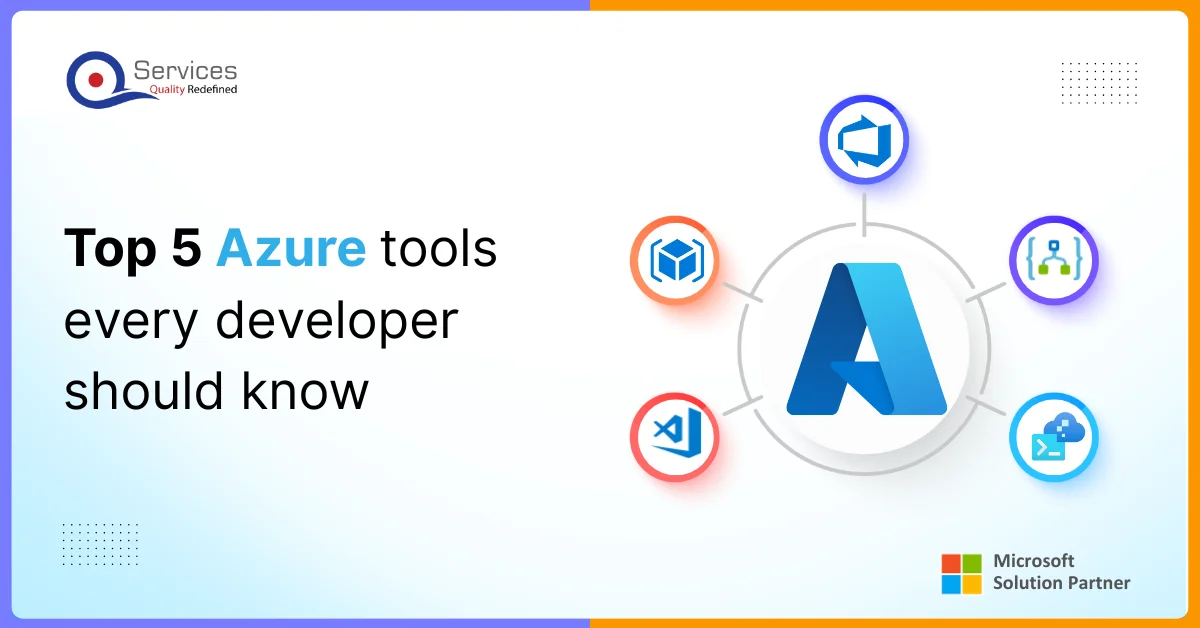
The world of cloud development tools has changed quickly over the past few years. Today, developers and businesses need fast, flexible ways to build, test, and release their software. In 2026, it’s vital for every developer to be skilled in using the right set of Azure developer tools for cloud projects. Microsoft’s Azure cloud platform is at the center of this shift, providing a wide range of solutions for building and managing apps. With cloud development with Azure, teams can launch reliable apps that scale globally and respond to business needs in real time. Picking the right items from the Azure tools list can save time, money, and help you get better results.
This blog is here to help both experienced engineers and beginners discover the top Azure tools every developer should know in 2026. Instead of simply listing features, we’ll look at real ways these tools make developing, automating, and deploying apps easier.
Here’s a preview of what’s included:
How Azure devops tools make teamwork and cloud development tools smoother
How Azure developer tools like Azure CLI tools and Visual Studio with Azure help in daily coding tasks
The basics of serverless development (Azure Functions tools, Azure App Service development)
How Azure Resource Manager (ARM) and Bicep manage and scale resources simply
Tips to use the Azure developer toolkit for more effective workflow.
Azure DevOps: The backbone of modern CI/CD
Why Azure DevOps matters in modern development
Among all Azure developer tools , Azure DevOps is a complete platform that brings together everything developers need to plan, build, test, and deploy applications. In today’s cloud-first world, speed and coordination are key. Azure DevOps allows teams to automate their entire process from coding to release while maintaining quality and control.
Instead of juggling disconnected systems, developers can use Azure DevOps as a single workspace that connects repositories, build pipelines, and monitoring tools. This unified approach makes it one of the most trusted Azure devops tools for modern cloud development tools workflows.
Key components that drive CI/CD efficiency
Azure DevOps is built around a few critical services that improve teamwork and automation:
Azure Repos: Enables version control using Git, allowing consistent and secure code collaboration.
Azure Pipelines: Automates the build, test, and deployment phases, making CI/CD smoother and error-free.
Azure Boards: Manages tasks and tracks progress across agile sprints with complete visibility.
Azure Artifacts: Hosts and shares packages safely within your organization to speed up builds.
Azure Test Plans: Supports integrated testing for early detection of issues before deployment.
Each of these services works seamlessly together in one environment, forming an integrated ecosystem that fits perfectly with other Azure developer tools. Whether you are deploying apps through Azure Pipelines or managing infrastructure with Azure Resource Manager (ARM), everything stays connected under one dashboard.
Deep integration across the Azure ecosystem
What gives Azure DevOps its powerful edge is how it connects with other core Azure developer tools. You can use Azure CLI tools to manage resources from within the pipeline, deploy templates written in Azure Resource Manager (ARM) or Bicep, or even launch serverless test runs with Azure Functions tools. This synergy means developers don’t switch between tools—Azure DevOps becomes the command center for the entire cycle.
Why every developer should learn It
For any developer working in the Azure ecosystem, mastering Azure DevOps is is not just another CI/CD solution; it is a bridge that connects planning, coding, testing, and deployment. Developers who understand how to use it effectively can automate repetitive tasks, minimize manual errors, and ensure every release is reliable and on time.
Using Azure DevOps tools also makes it easier to collaborate with cross-functional teams. Developers, testers, and project managers can all work in the same space, track progress in real time, and share updates instantly. This improves productivity and transparency across the software lifecycle.
The platform also supports integration with GitHub, Jira, and other popular tools, making it flexible for teams that already have established workflows. With features like YAML-based pipeline configuration, developers can version control their CI/CD setups just like code, which adds even more consistency and automation.
Learning Azure DevOps also prepares developers for future-ready cloud development. As companies continue to move towards AI-powered automation, infrastructure as code, and serverless computing, Azure DevOps will remain at the core of delivering scalable and secure applications.
Azure CLI: Power at Your Fingertips
The Azure CLI is one of the most powerful Azure developer tools for managing your cloud resources quickly and efficiently. Unlike clicking through menus in a portal, developers can use the CLI to write scripts that automate complex tasks, saving time and reducing errors. This kind of automation is a key part of cloud development with Azure in 2026, allowing smooth resource management and deployment.
One of the biggest strengths of the Azure CLI is how it can handle multiple resources at once. Commands like creating virtual machines, managing storage accounts, or deploying web apps can all be done from a simple command line. This means you can automate your workflows by embedding these commands into CI/CD pipelines, making the whole process faster and more repeatable. In fact, advanced scripts using the CLI can execute deployment strategies like rolling updates and environment scaling with minimal manual input.
A practical example: A developer can use a script to create a resource group, deploy database servers, and configure networking—all at once. This script can then be run repeatedly across development, test, and production environments, ensuring consistency and accuracy.
Integration with other Azure tools
One of the best things about the Azure CLI tools is how they integrate smoothly with other Azure developer tools. For instance, developers can trigger CLI commands directly from within an Azure DevOps pipeline, deploy resources defined in Azure Resource Manager (ARM) templates, or update serverless functions using Azure Functions tools.
This makes it possible to run end-to-end automation — from creating infrastructure to deploying applications and scaling them automatically. For teams managing large or complex projects, this means less switching between interfaces and more time focused on building great software.
In Visual Studio Code with Azure extensions, developers can also use the Azure CLI right inside the editor. This setup lets them run commands, view logs, and manage resources without leaving the coding environment. It’s a clean and efficient way to work, especially for developers handling cloud development tools daily.
Real-world use case
Imagine a scenario where a developer needs to deploy a microservice-based application across multiple environments. Instead of clicking through Azure’s web portal each time, they can write a script that:
1. Creates all required resource groups and networks.
2. Deploys containerized services using the Azure CLI.
3. Connects these services to a managed database.
4. Runs a final test deployment pipeline through Azure DevOps.
This single script can be executed anytime new environments are needed — ensuring each deployment is fast, identical, and error-free.
That’s the power of automation in Azure development tools — speed, consistency, and complete control.
Why every developer should learn Azure CLI
For any developer serious about Azure development, learning the Azure CLI is a must. It offers direct control, reduces reliance on the portal, and opens up more opportunities for automation. Once you get familiar with its commands, you’ll find it easier to experiment, test, and manage your projects efficiently.
It also prepares you for more advanced workflows like Infrastructure as Code (IaC) using Azure Resource Manager (ARM) or Bicep, where CLI commands can deploy entire environments automatically. When used with Azure DevOps tools, it enables full automation pipelines for both apps and infrastructure.
Even for beginners, Azure CLI is easy to start with. The syntax is simple, and there’s plenty of official documentation and community examples available. It’s beginner-friendly but powerful enough for experts to run complex operations at scale.
Let's Discuss Your Project
Get free Consultation and let us know your project idea to turn into an amazing digital product.
Visual Studio Code with Azure Extensions: Essential Tools for Developers
Why choose Visual Studio with Azure for cloud development?
Visual Studio Code (VS Code), paired with Azure extensions, has become a go-to tool for developers working on cloud projects. It is a lightweight, cross-platform code editor that provides a smooth experience for both beginners and experienced developers. With Azure SDK for developers integration, VS Code brings essential Azure developer tools directly into the coding environment, helping you write, test, and deploy applications efficiently.
Developers no longer need to switch between multiple tools to manage cloud resources, monitor apps, or troubleshoot issues. Everything can happen inside VS Code, making it an essential part of the Azure developer toolkit for 2026.
Boost productivity with built-in Azure features
One of the main advantages of Visual Studio with Azure is smart code assistance. Integrated tools provide:
IntelliSense for Azure APIs – Automatically suggests code snippets and parameters, reducing errors and saving time.
Quick deployment commands – Deploy applications to Azure App Service development directly from the editor.
Debugging and monitoring – Using Azure monitoring and debugging tools, developers can check logs, inspect live applications, and fix issues without leaving VS Code.
This integration makes everyday tasks simpler and faster. For instance, instead of looking up documentation, developers can access Azure resources, run commands, and manage services from one place.
Automation and serverless support
Developing serverless applications is easier with Azure Functions tools inside VS Code. You can:
Create and test functions locally.
Deploy serverless apps to the cloud.
Integrate with pipelines in Azure DevOps for continuous deployment.
By combining the Azure CLI tools with VS Code, developers can automate resource management or run scripts directly from their editor. This reduces manual work and improves workflow efficiency for both frontend and backend projects.
Support for full-stack and containerized applications
VS Code extensions also support Azure tools for backend and frontend development. Developers can work with:
Azure Kubernetes Service (AKS) for containerized applications.
Azure App Service for web apps and APIs.
Azure Functions for serverless backends.
This means the same tool can handle microservices, full-stack applications, and serverless solutions without switching between platforms. All these tasks fit neatly into the Azure developer toolkit, simplifying cloud development and deployment.
Integration with Azure DevOps and CI/CD pipelines
VS Code works seamlessly with Azure DevOps tools, allowing developers to:
Push code to Azure Repos.
Trigger automated builds and tests in Azure Pipelines.
Deploy applications to various environments automatically.
By connecting code editing, testing, and deployment in one workflow, VS Code helps developers implement Azure development best practices. It also ensures that applications are deployed consistently across development, staging, and production environments.
Why every developer should use Visual Studio with Azure
Whether you are new to cloud development with Azure or an expert managing complex infrastructure, VS Code with Azure extensions provides a beginner-friendly yet powerful environment. Key benefits include:
Centralized management of code, cloud resources, and deployment tasks.
Faster coding with fewer errors through IntelliSense and integrated documentation.
Easy automation using Azure CLI tools and serverless functions.
Support for both frontend and backend projects in the same editor.
Learning to leverage Visual Studio Code with Azure prepares developers for modern cloud workflows, improving productivity and collaboration in team environments.
Azure Logic Apps: Expert automation for cloud workflows
Why should developers Use Azure Logic Apps?
Azure Logic Apps is an important part of the Azure developer tools that helps automate tasks and workflows without needing a lot of coding. It connects many cloud services and on-premises systems quickly, helping developers create solutions faster and with fewer errors.
What makes Azure Logic Apps reliable for large workflows?
With many ready-to-use connectors for popular services like Salesforce, SQL databases, or SAP, Logic Apps let you build workflows that handle different tasks automatically. They offer built-in features like error handling, retries, and managing long-running processes, which ensure your workflows run smoothly, even in complex environments.
How does Logic Apps work with other Azure Tools?
Experts combine Azure Functions tools with Logic Apps to add custom processing when needed. You can use Azure DevOps to automate deploying these workflows, and Azure Monitor helps watch their performance for quick problem detection. This makes managing and scaling workflows easier.
Learning Logic Apps helps developers build fast, reliable, and scalable automation workflows. It also allows people who are not full-time developers to create or adjust these workflows using visual tools, increasing productivity across teams. Mastering these tools rounds out any strong azure developer toolkit.
Azure Resource Manager (ARM) templates: Automating Infrastructure as code
Why are ARM templates essential for Azure Developers?
ARM templates are a core Azure developer tool for defining and deploying Azure infrastructure using code. Writing infrastructure as code (IaC) with JSON allows developers to automate the creation of resources like virtual machines, storage accounts, and networks reliably. This removes manual setup errors and ensures environments are consistent and repeatable across development, testing, and production.
How do ARM templates improve infrastructure deployment?
By declaring your entire infrastructure setup in one or more ARM Templates, you can deploy and update environments with a single command. Parameterization allows the same template to work across multiple environments by changing inputs like VM sizes or names, which speeds deployment and reduces duplication. This automation fits into DevOps pipelines, enabling continuous integration and delivery of infrastructure alongside application code, drastically improving release cycles.
How do ARM templates Integrate with other Azure Developer tools?
ARM Templates work seamlessly with Azure DevOps for automating deployments, with Azure CLI tools and Azure PowerShell for scripting custom deployment workflows. This integration supports full automation and configuration management, keeping infrastructure and application lifecycle tightly synchronized.
Advanced features for expert developers
Experts leverage linked templates to break complex deployments into manageable modules, making templates easier to maintain and reuse. Template functions bring dynamic capabilities like conditional resource creation and secure parameter handling. ARM also supports embedding Role-Based Access Control (RBAC) rules to enforce security policies at deployment time. Deployment scripts complement ARM by running custom commands during provisioning to address specialized automation needs.
Why mastering ARM templates is critical for scalable and reliable cloud solutions
Mastering ARM templates equips developers to build infrastructure that scales with application demands while maintaining high reliability and compliance. It shifts infrastructure management from manual effort to automated, version-controlled workflows, essential for modern cloud environments. ARM templates form a foundational pillar in any expert Azure developer tools toolkit, aiming for operational excellence and agility.
Eager to discuss about your project ?
Share your project idea with us. Together, we’ll transform your vision into an exceptional digital product!
The Azure ecosystem gives developers everything they need to build, test, automate, and deploy modern cloud applications with confidence. From Azure DevOps tools that streamline CI/CD and project management, to Azure CLI tools that automate resource management, every solution in the Azure tools list plays a unique role in improving productivity and performance.
Whether you’re coding in Visual Studio with Azure, developing serverless apps using Azure Functions tools, or managing infrastructure through Azure Resource Manager (ARM) templates, each of these Azure development tools helps simplify complex processes and make cloud projects more reliable. Together, they form the foundation of an expert-level Azure developer toolkit that empowers both beginners and seasoned engineers to build scalable, secure, and innovative cloud solutions.
As cloud technology continues to evolve, mastering these top Azure tools every developer should know in 2026 will help you stay competitive and efficient. The key isn’t just learning how to use each tool individually but understanding how they integrate to create a seamless development experience, one where automation, collaboration, and scalability work in perfect sync.
If you’re serious about cloud development with Azure, now is the time to sharpen your skills, experiment with these tools, and embrace the future of intelligent, automated development on the Azure cloud platform.
What makes Azure DevOps one of the most useful Azure developer tools?
Azure DevOps is a complete platform that helps teams plan, build, test, and release software faster. It includes tools like Azure Repos for version control, Azure Pipelines for automation, and Azure Boards for tracking progress. With everything connected in one place, developers can manage projects easily and keep their work organized.
How is Azure CLI different from the Azure Portal for managing cloud resources?
The Azure CLI lets you use commands and scripts to manage cloud resources. The Azure Portal is visual and easy for beginners, while the CLI is better for developers who want to automate tasks and save time. It allows you to perform complex actions quickly without clicking through multiple menus.
Can Azure CLI tools work together with Azure DevOps pipelines?
Yes, they work very well together. You can use Azure CLI commands inside Azure DevOps pipelines to create or update cloud resources automatically. This helps keep your app and infrastructure deployment consistent and error-free.
Why should developers use Visual Studio Code with Azure extensions?
Visual Studio Code with Azure extensions brings all Azure features into one editor. You can write code, deploy apps, check logs, and manage resources without switching tools. It improves workflow, reduces mistakes, and saves a lot of time during cloud development.
When are Azure Logic Apps most useful in real projects?
Azure Logic Apps are great for automating tasks between services. For example, they can send an email when new data is added to a database or connect apps like Salesforce and Outlook. They reduce manual work and help systems communicate smoothly, even if they are very different.
How do Azure Resource Manager (ARM) templates help in automation?
ARM templates let developers define and create their infrastructure using code. This means you can set up virtual machines, databases, and networks automatically instead of doing it manually. It ensures that each environment is built the same way and helps avoid setup errors.
What is the difference between Azure Bicep and ARM templates?
Azure Bicep is a newer and easier version of ARM templates. It uses simpler syntax and is easier to read, but it works with the same Azure system. Many developers prefer Bicep because it makes writing and updating templates faster.
Can Azure Functions be managed with these tools?
Yes, you can manage Azure Functions through Visual Studio Code, Azure CLI, and Azure DevOps. Developers can create, test, and deploy serverless applications, then automate their updates through CI/CD pipelines. Logic Apps can also trigger Azure Functions for more complex workflows.
Are Azure DevOps and GitHub Actions the same thing?
They are similar but serve different needs. Azure DevOps is more suited for large, enterprise projects because it includes project tracking, testing, and build tools. GitHub Actions is simpler and works well for smaller or open-source projects. Some teams use both, depending on what they need.
How do these Azure developer tools improve teamwork?
All Azure tools are designed to work together. Developers, testers, and managers can use Azure Boards, Repos, and Pipelines in one place. This helps everyone stay updated, share progress, and release software faster with fewer mistakes.
They are similar but used by different types of users. Azure Logic Apps are for developers who build large-scale, complex workflows. Power Automate is made for business users who want to create simple automations without much coding. Logic Apps offer more customization and flexibility.
What is the best way to start learning Azure developer tools?
Start by using the Azure free tier and install Visual Studio Code with Azure extensions. Practice basic tasks like deploying web apps with Azure CLI and automating builds using Azure DevOps. Microsoft Learn offers free tutorials that guide you step by step through all these tools.
Business intelligence consulting services should give a mid-market company a governed way to make decisions. Attractive dashboards are only the visible part. The useful outcome is a system in which source data, metric definitions, access, releases, ownership, and support still work after the consultants leave.
In a Microsoft Solutions Partner vs Microsoft Partner comparison, the difference is validation. A company can participate in the Microsoft AI Cloud Partner Program without holding a customer-facing Solutions Partner designation. A designated Solutions Partner has met Microsoft’s current threshold in a specific solution pathway: at least 70 out of 100 partner capability points, with more than zero points in every required metric, based on performance, skilling, and customer success data recorded in Partner Center.
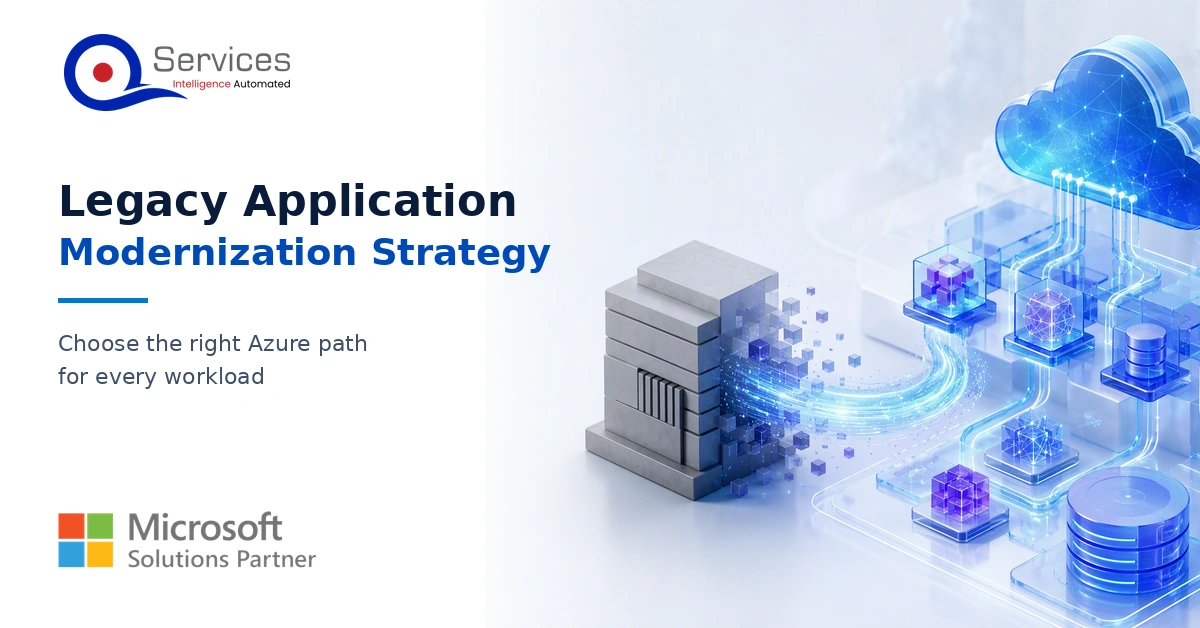
How do you build a legacy application modernization strategy for Azure? A legacy application modernization strategy assigns the right treatment to each workload, then sequences the work around business value, technical evidence, and operational risk. For Azure, that means choosing among retire, retain, rehost, replatform,
QServices Inc. undertakes every project with a high degree of professionalism. Their communication style is unmatched and they are always available to resolve issues or just discuss the project.
Turn the Microsoft Licenses
You Already Own Into an AI Workplace
Join our live webinar on Sept 24 and see five ways to automate meetings, approvals, and