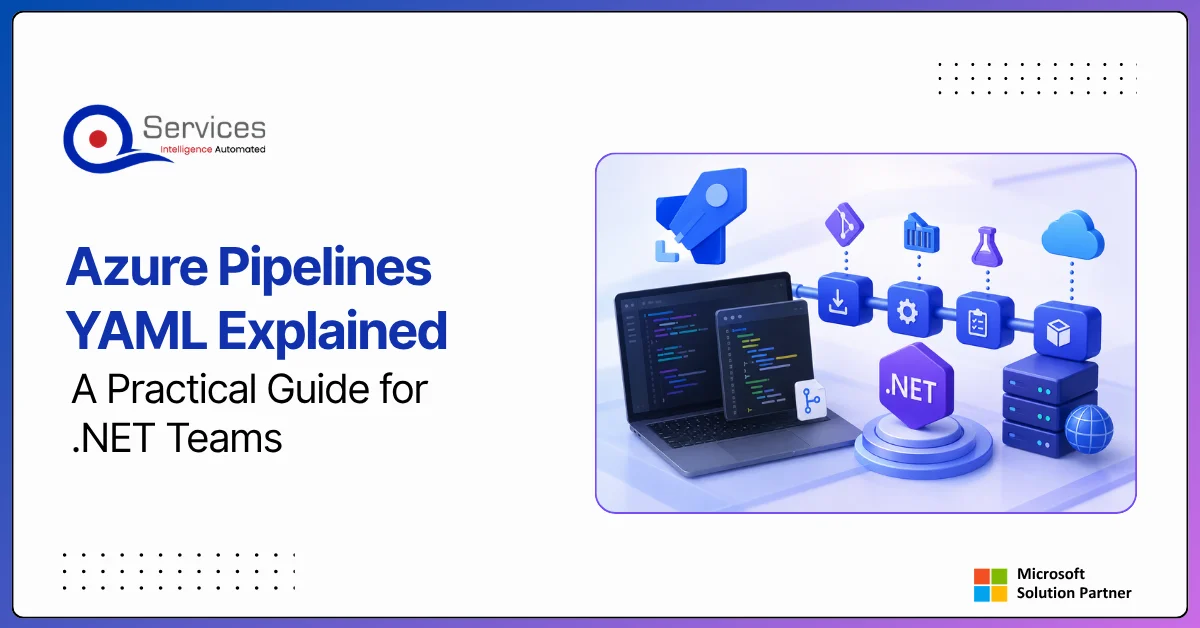
Azure pipelines yaml is where most .NET teams either save hours every week or create a maintenance nightmare that nobody wants to own. If you've inherited a classic editor pipeline that nobody documents and everyone fears touching, you already know the problem. This guide walks through the YAML structure in practical terms: what each block does, how to build a working .NET pipeline step by step, and where teams typically get stuck. We'll also cover when it makes sense to bring in azure consulting services rather than burning sprint capacity on infrastructure plumbing.
In This Article, You'll Learn
What Is Azure Pipelines YAML and Why Does It Matter for .NET Teams?
Anatomy of an Azure Pipelines YAML File
How Do I Write a YAML Pipeline for .NET?
Azure Pipelines YAML: Key Stages for .NET Applications
How Azure Pipelines YAML Connects to Your Migration Strategy
Eager to discuss about your project?
Share your project idea with us. Together, we’ll transform your vision into an exceptional digital product!
What Is Azure Pipelines YAML and Why Does It Matter for .NET Teams?
Azure Pipelines YAML is a code-as-configuration format that defines your CI/CD workflow in a .yml file checked into your repository alongside your application code. Unlike the classic UI-based editor, a YAML pipeline is version-controlled, reviewable, and reproducible across environments.
For .NET teams specifically, this matters for three concrete reasons. A YAML file is part of the pull request, so reviewers can see exactly what changed in the build process. Pipelines can be templated and reused across microservices without copy-pasting through a GUI. And you can run the exact same pipeline logic in different stages (dev, staging, production) by parameterizing environment variables.
Microsoft introduced YAML pipelines in Azure DevOps in 2019, and they've become the standard for teams building on .NET 6 and above. If your team is still on classic pipelines, migrating to YAML is worth the investment, particularly before any azure app modernization effort or a lift and shift to Azure migration.
Why YAML Over Classic Pipelines?
Classic pipelines store configuration in Azure DevOps, not in your repo. That creates a split between application code and the process that builds it. When a build breaks after a change, tracing it back to what changed in the pipeline is harder. YAML solves this by making the pipeline a first-class citizen in your codebase. Every change has a commit hash, a PR reviewer, and a rollback path.
YAML Pipeline vs Release Pipelines: What Is the Difference?
YAML pipelines handle both CI (build and test) and CD (deploy to environments) in a single file using stages. Classic release pipelines were separate from build pipelines. Multi-stage YAML lets you define the full path from commit to production in one place, which simplifies governance and audit trails, especially in regulated industries.
Anatomy of an Azure Pipelines YAML File
Every azure pipelines yaml file follows a consistent structure. Here's the skeleton for a .NET project:
Defines what starts the pipeline. branches.include runs the pipeline on every push to main. You can also trigger on pull requests with pr: and on tags with tags:. Most teams set up both: a CI trigger on all branches and a CD trigger only on main or release branches.
pool
Sets the build agent. windows-latest is required for most .NET Framework projects. For .NET 6/7/8 cross-platform code, ubuntu-latest is faster and costs less per minute on Microsoft-hosted agents.
variables
Centralizes configuration values. Variables defined here are available throughout the pipeline as $(variableName). Sensitive values like connection strings belong in Variable Groups in the Azure DevOps library, not hardcoded in this file.
stages, jobs, and steps
This is the three-level hierarchy. A stage is a logical grouping (Build, Test, Deploy) and stages run sequentially by default. A job is a unit of work running on a single agent, and multiple jobs within a stage can run in parallel. A step is an individual task or script, and steps run in sequence within a job.
How Do I Write a YAML Pipeline for .NET?
Here is a working example for a typical ASP.NET Core application deploying to Azure App Service. This follows the HowTo pattern teams search for most.
Step 1: Define the trigger and pool
trigger:
 branches:
 include:
 - main
 - release/*

pool:
 vmImage: 'ubuntu-latest'
Step 2: Add a Build stage with restore, build, and test
The dependsOn: Build and condition: succeeded() combination ensures deployment only happens when the build passes. The environment: keyword ties the deployment to an Azure DevOps Environment, which enables approval gates.
Setting Up Service Connections
Before the deploy stage works, you need a service connection from Azure DevOps to your Azure subscription. In Project Settings, go to Service connections, create an Azure Resource Manager connection, and reference it in azureSubscription:. This is a one-time setup task but the first blocker most teams hit when working independently or starting azure devops consulting services.
Using Templates for Reusable Pipeline Logic
If you're running multiple .NET microservices, copy-pasting the same build steps into every pipeline creates a maintenance problem quickly. Templates solve this. Store common steps in a templates/build-steps.yml file and reference it with - template: templates/build-steps.yml. This pattern is particularly useful during an azure landing zone implementation where dozens of services need consistent CI/CD from day one.
Azure Pipelines YAML: Key Stages for .NET Applications
A production-ready .NET pipeline typically runs through four distinct stages. Here's what each one should contain.
Stage 1: Build and Unit Test
Restore packages, compile in Release mode, run unit tests, and publish test results. Keep this stage under 5 minutes. If it's slower, look at your restore step first. Using a cache task for NuGet packages cuts restore time by 60-80% on warm builds:
Key Insight Using a cache task for NuGet packages cuts restore time by 60-80% on warm builds:
Run SonarQube, Roslyn analyzers, or the built-in security scanning tasks here. This stage catches issues before they reach the integration environment. When teams request an azure security assessment, a missing static analysis stage is one of the most common gaps found in existing pipelines.
Stage 3: Integration and Smoke Tests
Deploy to a staging environment and run integration tests against it. Require a manual approval before this stage proceeds to production using Azure DevOps Environment approval checks. Human-in-the-Loop governance ensures human approval at every deployment stage, which is a pattern regulated industries like healthcare and banking require for audit trails.
Stage 4: Production Deployment with Rollback
Use deployment slots in Azure App Service to enable zero-downtime deployment and fast rollback. Swap the staging slot to production after smoke tests pass using the AzureAppServiceManage@0 task. This stage should be the fastest, typically under 2 minutes for a slot swap.
How Azure Pipelines YAML Connects to Your Migration Strategy
Teams planning to migrate on premise to azure often treat the CI/CD pipeline as an afterthought. It shouldn't be. The pipeline is how every future change reaches production, and designing it poorly before the migration means rework mid-flight.
For a hybrid cloud azure setup where some services remain on-premises and others run in Azure, YAML pipelines support multi-environment deployments natively. You can deploy to on-premises infrastructure using a self-hosted agent pool while running builds in the cloud. This flexibility matters during the transition period when you can't move everything at once.
If your team is working with an azure migration partner, the YAML pipeline setup should be part of the project scope, not a handoff item after go-live. A structured pipeline is part of the azure infrastructure assessment deliverable because it documents how code reaches production, which matters for compliance and change management.
QServices is a Microsoft Certified Solutions Partner with 500+ Azure and Microsoft platform projects completed since 2014. When clients engage us for azure cloud migration services, we include pipeline architecture as a first-class deliverable. The five phases of Azure migration we follow are: assess, plan, migrate, optimize, and operate. Pipeline design happens in the plan phase.
Our azure architecture review process always includes a CI/CD audit. Teams that skip this step often discover mid-migration that their pipelines can't target new infrastructure without major rework. For teams also evaluating process automation alongside their Azure work, Power Automate vs Logic Apps: 7 key differences for 2026 covers when to use each automation approach in an Azure-centric environment.
Azure Cost Optimization Through Smarter Pipeline Design
Pipeline configuration directly affects your Azure DevOps bill. Teams often overlook this during setup and get surprised when monthly compute costs run higher than expected.
Choose the Right Agent Pool
Microsoft-hosted agents are billed per minute with different rates per OS. According to Microsoft's Azure DevOps pricing documentation, Ubuntu agents cost less than Windows agents for the same workload. For .NET 8 and above targeting Linux deployments, switching to ubuntu-latest is one of the simplest wins in an azure cost optimization consulting engagement.
Parallelize Tests Strategically
Running all test assemblies on a single agent is slow. You can split tests across parallel agents using the --filter flag. The honest caveat: parallel jobs each consume a hosted pipeline minute. Splitting a 4-minute test run into 4 agents running 1 minute each uses the same total compute and adds scheduling overhead. Parallelization pays off only when you have 15 or more minutes of tests.
Cache Dependencies Aggressively
Beyond NuGet, cache Docker layers if you're building container images. A team building 10 times per day can save 30-40 minutes of agent time daily just from a well-configured cache task. For more on controlling Azure spend beyond pipelines, see our post on Azure cost optimization: 7 tactics beyond reserved instances.
For teams deciding whether to manage pipelines in-house or with an azure managed services provider, the Microsoft Azure Well-Architected Framework provides operational benchmarks worth reviewing before making that decision.
When to Bring In Azure DevOps Consulting Services
Most teams get the basics right but hit walls in three specific areas.
First, environment management. Setting up approval gates, per-environment variable groups, and service connections with least-privilege permissions takes Azure AD knowledge that most dev teams don't have day-to-day.
Second, template architecture. Building reusable templates that scale across 10-20 services without becoming a maintenance burden requires deliberate upfront design.
Third, security scanning integration. Embedding SAST tools, secret detection, and container scanning into the pipeline without breaking build times requires experience with the specific toolchain.
As a microsoft azure consulting company, QServices handles all three as part of our azure devops consulting services practice. Teams often spend 3-4 sprint cycles solving these problems independently when a focused 2-week engagement resolves them cleanly.
The NIST DevSecOps guidance (SP 800-204C) is a practical reference for teams that need a structured approach to security in their CI/CD pipelines, particularly for power platform governance and azure security assessment workstreams running in parallel.
Key Takeaways
Azure Pipelines YAML is a code-as-configuration format that defines your CI/CD workflow in a .yml file checked into your repository alongside your application code.
Every azure pipelines yaml file follows a consistent structure.
Here is a working example for a typical ASP.NET Core application deploying to Azure App Service.
A production-ready .NET pipeline typically runs through four distinct stages.
Teams planning to migrate on premise to azure often treat the CI/CD pipeline as an afterthought.
Conclusion
Azure Pipelines YAML gives .NET teams a way to treat their CI/CD process with the same discipline they apply to application code. The structure is learnable in a day, the patterns in this guide cover most production scenarios, and the remaining complexity is specific to your environment: existing Azure infrastructure, compliance requirements, and service portfolio size.
If you're starting a new migration or trying to clean up a pipeline setup that grew without structure, bringing in azure consulting services for a targeted review often pays back faster than expected. QServices works with teams across healthcare, logistics, and SaaS to build pipelines that hold up at scale, as part of broader azure cloud migration services engagements.
Talk to a DevOps Architect on our team to review your current pipeline setup or plan the CI/CD architecture for an upcoming migration. We offer a no-commitment azure architecture review session to identify gaps and priority improvements.
Co-Founder and CTO, QServices IT Solutions Pvt Ltd
Rohit Dabra is the Co-Founder and Chief Technology Officer at QServices, a software development company focused on building practical digital solutions for businesses. At QServices, Rohit works closely with startups and growing businesses to design and develop web platforms, mobile applications, and scalable cloud systems. He is particularly interested in automation and artificial intelligence, building systems that automate routine tasks for teams and organizations.
Define a trigger block pointing to your main branch, set the pool to ubuntu-latest for .NET 8+ projects, then add a Build stage with UseDotNet@2, dotnet restore, dotnet build, and dotnet test steps. Add a Deploy stage with dependsOn: Build and condition: succeeded() that uses AzureWebApp@1 to deploy to Azure App Service via a service connection. The deploy stage should reference an Azure DevOps Environment so you can add approval gates before production.
YAML pipelines store the CI and CD configuration as a .yml file inside your repository, making every change reviewable and version-controlled alongside application code. Classic release pipelines are stored in Azure DevOps and are separate from the build pipeline, with no native PR review or git history. Multi-stage YAML replaced classic release pipelines as the recommended approach for new projects.
Reference an Azure DevOps Environment in your deployment job using the environment: keyword. In the Azure DevOps portal, open that environment and configure Approvals and Checks. You can require one or more named approvers before the stage proceeds. This is the recommended approach for Human-in-the-Loop governance in production deployments and is required in many azure security assessment findings for regulated industries.
Yes. Define separate stages for each environment (dev, staging, production) in the same YAML file. Use variables: or variable groups to supply environment-specific configuration. Each stage can reference a different Azure DevOps Environment with its own approval rules, and you can use condition: expressions to control which branches trigger each stage. This multi-stage pattern is standard in azure devops consulting services engagements for .NET applications.
The pipeline defines how every future code change reaches production infrastructure in Azure, so it should be designed during the plan phase of migration, not after go-live. For a hybrid cloud azure setup with both on-premises and cloud targets, YAML pipelines support self-hosted agent pools for on-premises deployments alongside cloud-hosted agents. Azure migration partners typically include pipeline architecture as part of the azure infrastructure assessment and landing zone implementation deliverables.
Switch from windows-latest to ubuntu-latest for .NET 6/7/8 projects that don’t require Windows-specific dependencies, since Ubuntu agents are cheaper per minute. Add a Cache@2 task for NuGet packages using packages.lock.json as the cache key to eliminate most restore time on warm builds. Azure cost optimization consulting typically identifies these two changes as the highest-impact, lowest-risk improvements in pipeline cost reduction.
When PDF text extraction drops the spaces between words, AI agents can’t find facts that are right there. How we found it in Azure AI Foundry and fixed it.
Pint AE explained for UAE finance teams with one sample invoice: see which fields come from your ERP, which go missing, and how to test before go-live.
Days sales outstanding explained for CFOs: the formula, worked examples, named industry benchmarks, and why seasonal sales distort DSO. See what moves it.
Eager to discuss about your project?
Share your project idea with us. Together, we’ll transform your vision into an exceptional digital product!
When PDF text extraction drops the spaces between words, AI agents can’t find facts that are right there. How we found it in Azure AI Foundry and fixed it.
Pint AE explained for UAE finance teams with one sample invoice: see which fields come from your ERP, which go missing, and how to test before go-live.
Days sales outstanding explained for CFOs: the formula, worked examples, named industry benchmarks, and why seasonal sales distort DSO. See what moves it.
QServices Inc. undertakes every project with a high degree of professionalism. Their communication style is unmatched and they are always available to resolve issues or just discuss the project.
Turn the Microsoft Licenses
You Already Own Into an AI Workplace
Join our live webinar on Sept 24 and see five ways to automate meetings, approvals, and