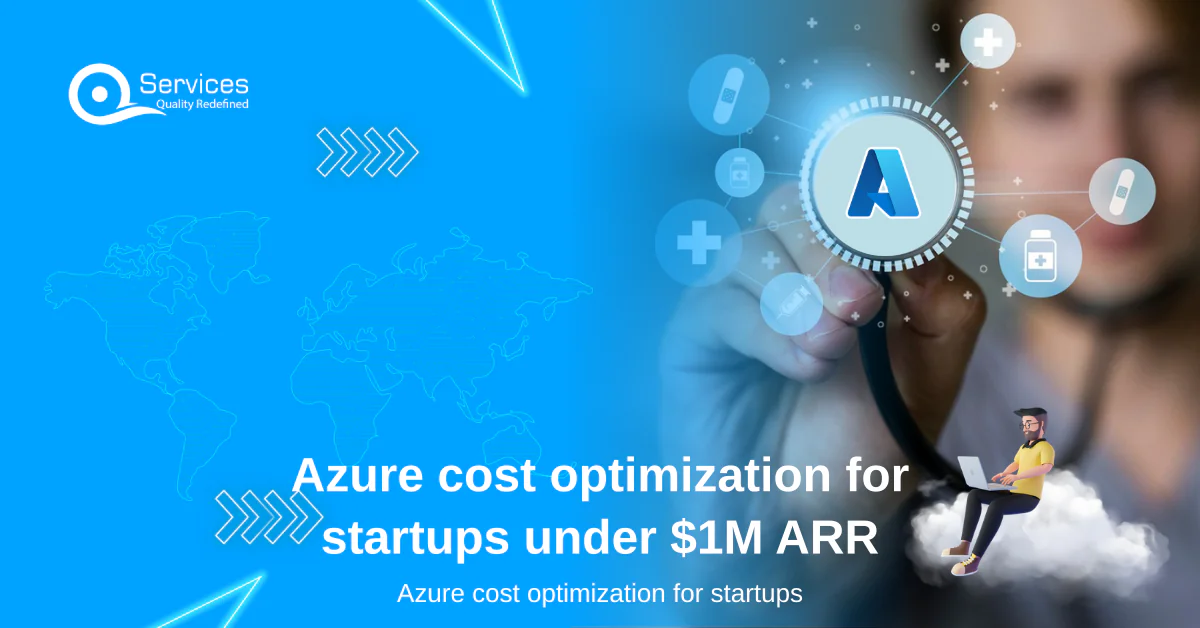
Azure cost optimization for startups is the difference between a cloud bill that scales with your revenue and one that quietly drains your runway before you hit $1M ARR. Most early-stage teams overspend on Azure by 30-40% without realizing it, and the waste usually comes from a handful of predictable patterns. This guide covers what those patterns look like at the sub-$1M ARR stage, and exactly how to fix them without rebuilding your infrastructure or slowing down your engineering team.
Why Azure Costs Spiral for Early-Stage Startups
Startups move fast, and Azure makes it easy to spin up resources. That speed is one of Azure's genuine strengths. The problem is that provisioning is frictionless but deprovisioning tends to be an afterthought. A developer spins up a D4s_v3 VM to test a feature, forgets to shut it down over a long weekend, and that single oversight costs $200. Multiply that across a five-person engineering team over a quarter, and you're looking at a recurring cost leak that has nothing to do with your actual product.
Three patterns show up repeatedly in startups at this revenue stage:
- Over-provisioned VMs: Teams default to "bigger is safer" when picking VM sizes, especially for staging and QA environments.
- Idle resources: Databases, load balancers, and public IP addresses left running after a project wraps up.
- No cost visibility: Without tagging or budget alerts, nobody knows which workload is driving a spike until the invoice arrives.
Effective Azure cost optimization for startups starts with visibility into these three areas. The fix is not a large architectural overhaul. It is a series of small, targeted decisions that stack up fast.
Azure Cost Optimization for Startups: Start with Right-Sizing
Right-sizing is the practice of matching your Azure resource configuration to actual workload needs, not worst-case theoretical demands.
Most startups running web applications or APIs find that their production VMs sit at under 20% CPU utilization for most of the day. If you're running a Standard_D4s_v3 (4 vCPUs, 16 GB RAM) for an app that peaks at 2 vCPUs, dropping to a Standard_D2s_v3 cuts that VM cost roughly in half. For a startup paying $280/month on two D4s_v3 instances, that's $140/month back without any performance impact.
Here's where to start:
- Pull Azure Monitor metrics for every VM: look at CPU, memory, and network I/O averages over the past 30 days. Any VM averaging below 20% CPU is a right-sizing candidate.
- Run Azure Advisor: it surfaces right-sizing recommendations automatically and shows estimated monthly savings next to each one.
- Switch to B-series VMs for dev and test: B-series burstable VMs (like Standard_B2s) cost 50-60% less than comparable D-series VMs and handle intermittent workloads well.
- Revisit your database tier: Azure SQL Database and Cosmos DB both have scaling options. A startup under $1M ARR rarely needs the premium tier chosen during initial setup.
For a tier-by-tier breakdown of how right-sizing fits into a broader cost reduction plan, see our guide on Azure cost optimization for startups under $10K/month.
Azure Cloud Cost Management: Budget Alerts and Spending Governance
Budget visibility is a core part of Azure cost optimization for startups, and budget alerts are one of those features that take 15 minutes to configure but can prevent thousands of dollars in monthly overruns. Azure's Cost Management and Billing service is included with every Azure subscription at no additional cost.
How to set up Azure budget alerts:
- Navigate to Cost Management + Billing in the Azure portal.
- Select your subscription, then click Budgets > Add.
- Set a monthly budget amount based on your last month's actual spend.
- Add alert thresholds at 80% and 100% of budget. Add a forecast alert at 110% to catch overruns before month-end.
- Route alerts to your engineering lead and finance contact via email.
The 110% forecast alert is the one most teams miss. By the time an actual-spend alert fires at 100%, the month is nearly over. Azure's forecast alerts use spending projections and typically give you 7-10 days of advance warning.
Beyond alerts, apply resource tags from day one. Tag every resource with at minimum: environment (prod/staging/dev), team owner, and project name. Cost Management's grouping features let you slice your bill by tag combination, which makes it immediately clear whether a database spike came from the payments team or the analytics team.
For fintech startups, cost governance and compliance governance often overlap significantly. Our post on how to automate SMB compliance using Azure Logic Apps shows how the same tagging structure supports both cost control and regulatory audit requirements.
Eager to discuss about your project?
Share your project idea with us. Together, we’ll transform your vision into an exceptional digital product!
Book an Appointment now
Azure Reserved Instances vs Pay-As-You-Go: What Makes Sense Under $1M ARR
Azure Reserved Instances (RIs) let you commit to one or three years of VM usage in exchange for discounts of up to 72% compared to pay-as-you-go rates.
For a Standard_D4s_v3 in East US, pay-as-you-go runs about $0.192/hour ($140/month). A one-year reserved instance for the same VM drops to roughly $0.117/hour ($85/month). That's $55/month saved per VM. Across 10 VMs, that's $6,600 per year returned to the business.
| Factor |
Pay-As-You-Go |
1-Year Reserved |
3-Year Reserved |
| Upfront cost |
None |
Optional |
Optional |
| Discount vs PAYG |
0% |
Up to 40% |
Up to 72% |
| Flexibility |
Full |
Moderate |
Low |
| Best for |
Variable workloads |
Stable production |
Long-running services |
The catch is the commitment. If your architecture changes significantly, you're still paying for reserved capacity, though Azure allows exchanges and cancellations with some restrictions.
Practical guidance for sub-$1M ARR startups: Use pay-as-you-go for your first 6-12 months. Once you have 2-3 consecutive months of stable VM utilization data, convert those workloads to one-year RIs. Keep dev and test environments on pay-as-you-go and control those costs with auto-shutdown instead.
Our guide on reducing cloud costs by 40% with Azure Reserved Instances walks through the full commitment analysis, including instance size flexibility settings and how to scope reservations by region.
How Azure Advisor Helps You Cut Cloud Spending
Azure Advisor is a built-in recommendation engine that scans your Azure environment and flags specific issues across cost, performance, security, and reliability. The cost recommendations are worth reviewing every week.
Advisor's typical cost recommendations for startups include:
- Underutilized VMs: VMs averaging less than 5% CPU for 14 days, with a suggested downsize or shutdown.
- Unattached managed disks: Disks still billed after the VM they belonged to was deleted.
- Idle App Service plans: Plans with no active apps or traffic still generating charges.
- Reserved instance coverage gaps: Workloads that would benefit from reservation pricing.
Each recommendation includes an estimated monthly savings figure. A startup with 15-20 Azure resources typically finds $300-800/month in Advisor recommendations the first time they look. To access it: search "Advisor" in the Azure portal, click Cost in the left menu, and sort by "Annual savings." Work through the top five items first.
Azure Cost Analysis Tools You Should Be Using Weekly
Azure Cost Management includes a Cost Analysis view that every startup should open at least once a week. The three views that matter most:
- Accumulated cost (monthly): Shows your spend trend against budget. If the curve bends upward mid-month, investigate that day.
- Cost by resource: Sorts all resources by spend. The top five resources almost always account for 70-80% of the total bill.
- Cost by tag: Requires tagging discipline, but this view lets you allocate costs to specific teams or projects and have a real conversation about where money is going.
The Azure Pricing Calculator is worth bookmarking separately. Use it before provisioning any new resource to compare configuration costs side-by-side before you commit.
For startups evaluating whether Azure's tooling fits their broader platform needs, our comparison of Azure vs AWS vs Google Cloud for SMBs covers how native cost management features stack up across platforms.
Eager to discuss about your project?
Share your project idea with us. Together, we’ll transform your vision into an exceptional digital product!
Book an Appointment now
Auto-Shutdown Policies for Dev and Test Environments
Dev and test environments are the single biggest source of avoidable waste for early-stage startups. A developer's test VM running 24/7 costs exactly the same as a production VM. Auto-shutdown policies fix that without any workflow disruption.
To enable auto-shutdown on any Azure VM:
- Open the VM in the Azure portal.
- Under Operations, click Auto-shutdown.
- Set a shutdown time (7 PM or 8 PM local time works for most teams).
- Enable the 15-minute notification so developers get a heads-up before the machine shuts down.
- Save.
That takes under two minutes per VM. For a team of five developers each running one VM for 8 hours instead of 24, you cut VM runtime by 67%. On a Standard_D2s_v3 at $0.096/hour, that saves about $42/month per developer, or $210/month for the team.
For containerized workloads, Azure Container Instances bills per second and stops billing the moment the container exits. Moving batch jobs and test runners from persistent VMs to ACI can cut those specific workload costs by 60-80%.
Realistic Cost Reduction Targets for Azure Startups Under $1M ARR
Teams that haven't done any cloud cost review before typically see 30-45% savings in the first 90 days after applying these tactics. Here's how the savings break down:
- Right-sizing VMs: 15-25% reduction on compute costs
- Reserved instances for stable workloads: 30-40% savings on those specific VMs
- Auto-shutdown for dev/test: 50-67% reduction on non-production compute
- Advisor cleanup (unattached disks, idle services): $100-500/month in quick wins
- Budget alerts: Catches anomalies early before they compound across a full billing cycle
A startup spending $3,000/month on Azure can realistically reach $1,800-2,100/month within 60-90 days without any architectural changes. That's $900-1,200/month back into hiring, product development, or runway.
For a step-by-step walkthrough targeting the 40% reduction mark specifically, how to reduce cost in Azure cloud by 40% includes a prioritized action list you can complete in a single sprint.
According to Flexera's 2024 State of the Cloud Report, 62% of organizations rank optimizing existing cloud usage as their top cost-saving priority. For startups, the opportunity is proportionally larger because governance structures typically get built after the fact rather than from day one.
Conclusion
Azure cost optimization for startups under $1M ARR is not a one-time project. It's a habit: weekly cost analysis, monthly Advisor reviews, and converting stable workloads to reserved instances as your architecture matures. The tactics here, right-sizing VMs, setting up budget alerts, enabling auto-shutdown for dev environments, and acting on Advisor recommendations, can cut your Azure bill by 30-40% without touching production architecture or adding downtime risk.
Start with the two fastest wins today: turn on budget alerts (15 minutes) and run Azure Advisor to surface idle resources and unattached disks. Those two steps alone typically surface $200-500 in monthly savings with zero risk. Then layer in reserved instances once you have stable utilization data to back the commitment.
Cloud spend that grows faster than revenue is a warning sign worth catching early. If you'd like help auditing your current Azure environment or building a cost governance plan tailored to your team's size and budget, reach out and we'll run a no-cost review.

Written by QServices Team
Co-Founder and CTO, QServices IT Solutions Pvt Ltd
Rohit Dabra is the Co-Founder and Chief Technology Officer at QServices, a software development company focused on building practical digital solutions for businesses. At QServices, Rohit works closely with startups and growing businesses to design and develop web platforms, mobile applications, and scalable cloud systems. He is particularly interested in automation and artificial intelligence, spending time experimenting with tools and building systems that automate routine tasks. Through his writing and projects, he explains practical ways to use modern technologies such as AI agents, automation platforms, and cloud-based systems in real business scenarios.
Talk to Our Experts
Frequently Asked Questions
Related Topics
Eager to discuss about your project?
Share your project idea with us. Together, we’ll transform your vision into an exceptional digital product!
Book an Appointment now