Running your business on Microsoft Azure gives you power, flexibility, and room to grow. But let’s be honest—cloud costs can get out of hand fast.
Reports show that up to 30% of cloud spending goes to waste because of unused resources, over-provisioning, and poor planning. For businesses heavily relying on Azure, finding ways to cut costs without sacrificing performance.
Here in this blog, we will discuss some practical Azure cost optimization strategies for cloud spend reduction by up to 30%. Whether you’re a startup watching every dollar or a large company managing complex systems, these tips will help you save money while keeping everything running smoothly.
Who Is This Guide For?
So, if you’re thinking whether this guide is for you, here’s a quick check:
Startups and Small Businesses: Want to get the most from Azure without paying much.
Enterprises: Need to manage large-scale Azure environments while controlling spending.
IT Teams and Decision-Makers: Looking to improve Azure cost optimization without cutting corners.
If any of these sound like you, keep reading and you will certainly find your solutions that help you reduce your Azure costs while staying efficient.
What Is Azure Cost Optimization?
Simply put, Azure cost optimization is all about spending smarter. It means using strategies and tools to reduce your Azure costs without sacrificing its performance.
Why Do Companies Overspend on Azure?
You are not alone if you are paying extra on Azure. Here are some common reasons businesses overspend:
Oversized Resources: Running bigger VMs than necessary.
Unused Services: Paying for things you no longer use.
No Automation: Forgetting to shut down resources when they’re not needed.
Wrong Pricing Model: Not taking advantage of Reserved Instances or Savings Plans.
Lack of Monitoring: Not tracking where your money is going.
These mistakes add up fast—but the good news is they’re easy to fix once you know how.
How Azure Cost Optimization Can Save You 30%
By applying the right strategies, businesses can cut cloud spending by 30% or more. Here’s a sneak peek at some ways to save:
Rightsize Resources: Match your virtual machines to what you actually need.
Turn Off Idle Resources: Use automation to shut down what’s not in use.
Use Reserved Instances: Pre-pay for resources at a discount.
Optimize Storage: Move data to cheaper storage tiers when possible.
Review Regularly: Regularly check your Azure setup and make adjustments.
Rightsizing and Automating Resources for Azure Cost Optimization
In this section, we’ll dive into two of the most effective ways to cut Azure costs: rightsizing resources and automating resource management. These strategies help ensure you only pay for what you actually use—no more wasted spending.
1. Rightsizing Resources: Pay Only for What You Need
One of the biggest causes of overspending in Azure is using resources that are larger or more powerful than necessary. This is where rightsizing comes in—it’s the process of adjusting your Azure virtual machines (VMs) and other resources to match the actual workload.
What Is Rightsizing?
Rightsizing is checking if the Virtual Machines, databases, and storage that you are using are of the right size as per your needs. Suppose you are running a machine at 20% capacity; you’re probably paying more than expected. By adjusting to a smaller size, you can reduce costs without losing its performance.
How to Right-Size in Azure
Here’s how to identify and resize oversized resources:
Analyze Usage with Azure Monitor: Use Azure Monitor to track how much CPU, memory, and storage your VMs actually use.
Identify Underutilized Resources: Look for machines running at low usage—these are prime candidates for resizing.
Choose the Right VM Series: Azure offers different VM types (e.g., B-series for low usage, D-series for general workloads). Pick the best match for your workload.
Resize or Switch: Adjust VM sizes or switch to a more cost-effective type.
Example: A retail company saved 25% on cloud costs by shifting from D-series VMs to B-series VMs for their seasonal workloads, which only needed power during peak times.
2. Automating Resource Management to Reduce Wasted Spending
Another common problem is paying for idle resources—machines that run even when no one is using them. Automation helps you solve this by turning things off when you don’t need them and back on when you do.
Why Automate Resource Management?
Without automation, it’s easy to forget to turn off resources after business hours or during low-traffic periods. Automation helps by:
Reducing human error—no more forgetting to shut down.
Optimizing costs—automatically scales resources based on need.
Improving efficiency—frees your team from manual tasks.
Azure Automation Tools to Use
Azure Automation: Set up scripts to start and stop VMs on a schedule.
Azure Logic Apps: Automate workflows to manage costs.
Azure Cost Management + Billing: Track and optimize usage in real time.
Example: An IT company reduced 30% cloud cost savings with Azure optimization techniques by automating the shutdown of non-production environments overnight and on weekends.
Cut Azure Costs with Reserved Instances and Savings Plans
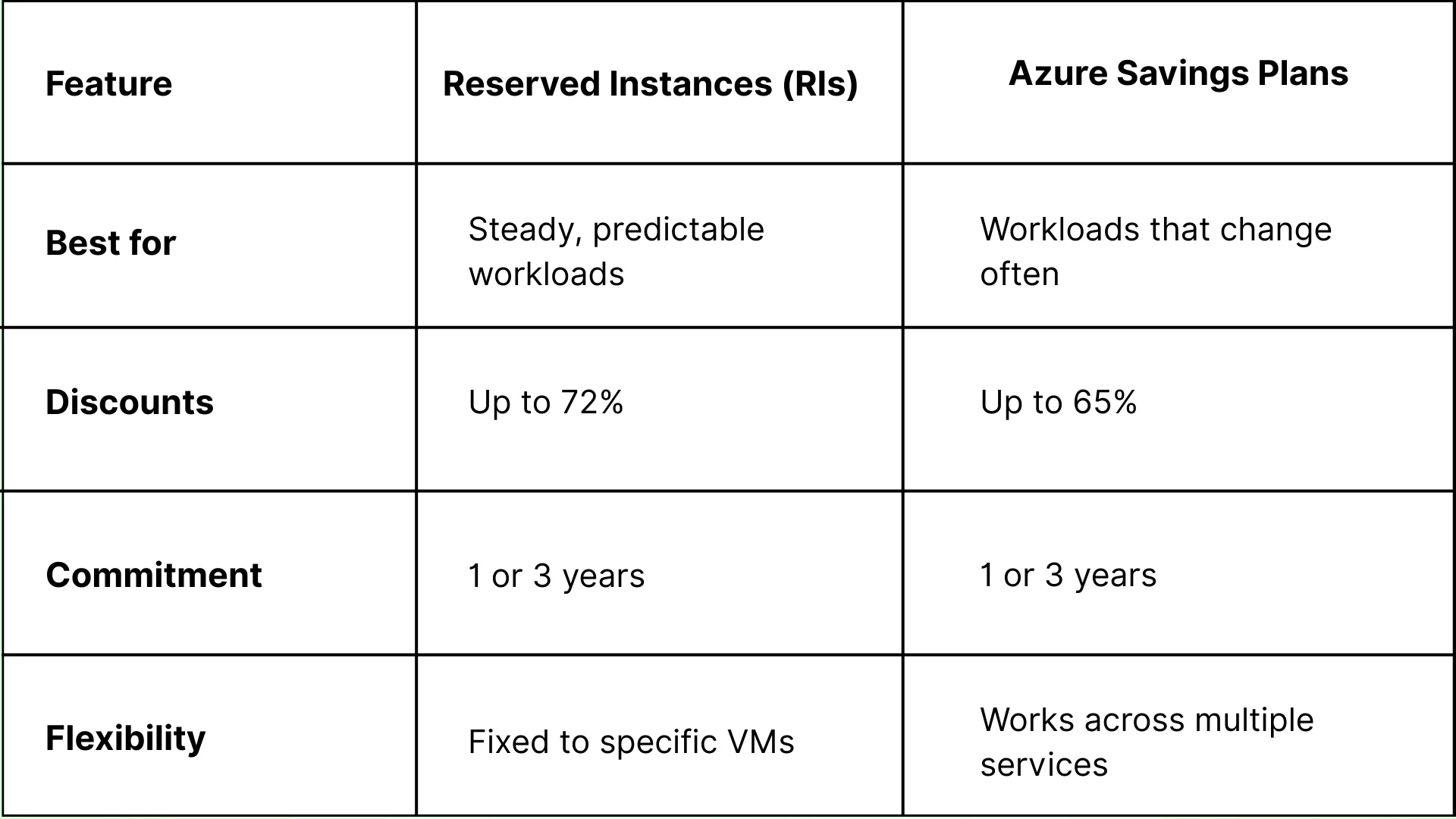
One of the best ways to lower Azure cloud costs is to plan early. If your business uses Azure virtual machines regularly, you can save up to 72% with Reserved Instances or Azure Savings Plans. These options help companies optimize Azure costs by providing discounts in exchange for a commitment to use cloud resources for a set period. Let’s understand how they work.
1. Understanding Reserved Instances (RIs)
Reserved Instances (RI) let you prepay for Azure virtual machines for one or three years instead of paying for them by the hour. Because you’re committing to long-term usage, Azure cloud cost optimization tools provide you a huge discount compared to pay-as-you-go pricing.
How RIs Help with Azure Cost Optimization
Lower Costs – Save up to 72% compared to hourly pricing.
Predictable Billing – Know exactly how much your Azure cloud costs will be.
Flexible Exchange – If your needs change, you can switch to a different VM type.
When Should Businesses Use RIs?
If you run the same workloads all year (like databases or web servers).
If your business has a steady demand for Azure cloud services.
If you want Azure cost savings with a clear budget plan.
Example: A retail company running its e-commerce website on Azure VMs switched to Reserved Instances and cut its Azure cloud spend by 50% in a year.
2. Azure Savings Plans: More Flexibility, Still Big Savings
If your Azure cloud workloads change often, Azure Savings Plans might be a better choice. Instead of reserving specific virtual machines, you commit to spending a certain amount per hour, and Azure automatically applies discounts to the services you use.
How Savings Plans Reduce Azure Costs
Up to 65% Savings – Lower costs compared to pay-as-you-go pricing.
More Flexible Than RIs – Works across multiple VM types and services.
Applies to Changing Workloads – Great for businesses with dynamic usage.
When Should Businesses Use Savings Plans?
If your company’s Azure cloud usage is unpredictable.
If you use multiple Azure services, not just virtual machines.
If you want cost optimization in Azure without being locked into specific VM sizes.
Example: A SaaS company with variable compute needs used an Azure Savings Plan and reduced its Azure cost by 35% while maintaining flexibility.
3. Which One is Right for Your Business?
Both options are great for Azure cost optimization, and the right choice depends on how your business uses cloud services.
4. Why This Matters for Azure Cost Savings
Using Reserved Instances or Savings Plans is a proven strategy for businesses looking to cut Azure cloud spend without sacrificing performance. By making smart choices in Azure cost management, companies can reduce their monthly cloud bill and free up budget for other needs.
Let's Discuss Your Project
Get free Consultation and let us know your project idea to turn into an amazing digital product.
Managing storage costs and automating resource usage are crucial steps in Azure cost optimization. Without proper controls, businesses end up paying for unused storage or idle resources. In this section, we’ll explore how to optimize Azure storage costs with tiered storage options, automate resource shutdowns, and implement cost-saving strategies for dynamic workloads.
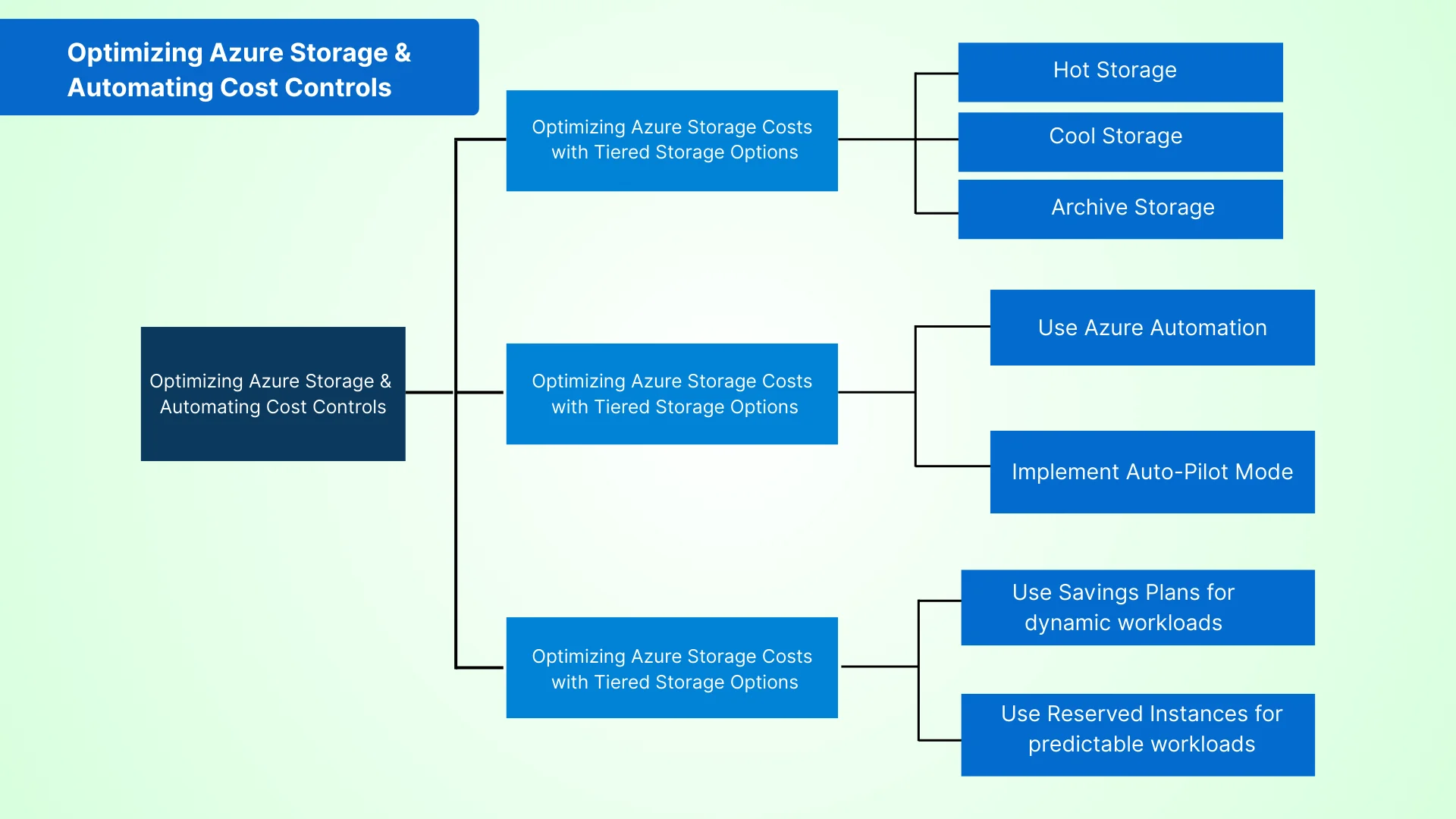
1. Optimizing Azure Storage Costs with Tiered Storage Options
Storage is one of the biggest contributors to Azure cloud cost optimization, but many businesses overspend simply because they aren’t using the right storage tier. Azure offers multiple storage tiers to manage costs effectively:
Hot Storage – For frequently accessed data. Higher cost but low latency.
Cool Storage – For infrequently accessed data. Lower cost than hot storage.
Archive Storage – For rarely accessed data. Lowest cost, but higher retrieval time.
By implementing tiered storage options, businesses can reduce Azure cloud spend by automatically moving data to the most cost-effective tier. This is one of the best practices for Azure cloud cost management that large enterprises and startups alike should follow.
Example: A financial services company storing transaction data for compliance purposes can shift older records from Hot Storage to Archive Storage, saving thousands per year.
2. Automating Azure Resource Shutdown for Idle Resources
Another Azure cost optimization strategy is automating the shutdown of idle resources. Many businesses leave virtual machines (VMs), databases, and development environments running even when they’re not in use. This leads to unnecessary cloud cost optimization challenges.
How to Fix It?
Use Azure Automation to schedule VM shutdowns during off-hours.
Implement Auto-Pilot Mode with Azure Cost Optimization Tools that monitor usage patterns.
Set up Azure Policies to detect and automatically turn off underutilized resources.
Example: A SaaS company with multiple testing environments can set up Azure cost optimization tools for efficient resource management, ensuring test VMs shut down overnight and restart during business hours.
3. Azure Cost Optimization for Dynamic Workloads with Savings Plans
Businesses with fluctuating workloads often deal with cost optimization in Azure. Rather than paying for always-on resources, they can switch to Azure savings plans that can provide them discounted pricing based on their long-term usage.
Use Reserved Instances for predictable workloads – Discounts up to 72%.
Use Savings Plans for dynamic workloads – Flexible pricing based on actual usage.
Example: An online retail store can adopt “Azure cost optimization for dynamic workloads with savings plans” to handle seasonal traffic spikes without overpaying for cloud resources year-round.
Using Azure Cost Optimization Tools & Best Practices
To cut down Azure costs by 30%, businesses need the right tools and strategies. This section covers Azure cost optimization best practices for cloud cost savings, and ways small businesses can reduce Azure spending.
1. Using Azure Cost Optimization Tools for Better Budget Control
Microsoft offers Azure cost optimization tools that help track spending, reduce waste, and improve resource use. These tools give insights into where money is being spent and suggest ways to lower costs.
Azure Cost Management + Billing – This monitors usage, anticiaptes future costs, and sets budget limits.
Azure Advisor – This mainly analyzes resources and suggests cost-saving changes like rightsizing and reserved instances.
Azure Pricing Calculator – It helps businesses to estimate their expenses before deploying services.
Azure Monitor – Tracks cloud performance and spots underused resources that can be shut down.
A logistics company used “Azure cloud cost management best practices for enterprises” by setting budget alerts with Azure Cost Management + Billing, reducing unexpected expenses.
Azure cost optimization tools for efficient resource management help businesses stay within budget and avoid overspending.
2. Best Practices to Cut Cloud Costs
Following cloud cost optimization best practices can help businesses save thousands on Azure bills. Here are three keyways to lower expenses:
Adjusting Virtual Machine (VM) Sizes – Many businesses use larger VMs than needed, increasing costs. Azure Advisor recommends the right size based on actual use.
Autoscaling Resources – Instead of running services all the time, Azure Autoscale automatically adjusts resources when demand goes up or down.
Choosing Lower-Cost Azure Regions – Azure services are cheaper in some locations. Placing workloads in these low-cost regions can reduce cloud bills.
Example: A SaaS company applied “Reducing Azure cloud spend through rightsizing and autoscaling” and lowered costs by 35% by shrinking oversized VMs and using autoscaling.
3. Cost Optimization for Small Businesses and Startups
Startups and small businesses must be extra careful with cloud spending. Here are simple ways to save money on Azure:
Use Free Azure Services – There are several Azure features, like Virtual Machines, Storage, and Databases, that are free for testing and small workloads.
Use Azure Hybrid Benefit – Businesses with Windows Server or SQL Server can reuse licenses and save up to 85% on costs. Try Dev/Test Pricing – Azure offers discounted rates for development and testing environments, cutting non-production cloud costs.
Example: A FinTech startup followed “Azure cost optimization strategies for small businesses and startups” by using Dev/Test pricing and free-tier services, reducing cloud bills by 40%.
Advanced Strategies & Final Takeaways on Azure Cost Optimization
By now, we’ve covered multiple ways to reduce Azure cloud costs, but there are still a few high-impact strategies that businesses can use for long-term cost savings.
Investing in Azure Reserved Instances: Is It Right for Your Business?
Not all businesses need on-demand cloud resources all the time. Some workloads run consistently and don’t require constant adjustments. Azure Reserved Instances help companies to save up to 72% by committing to a 1-year or 3-year plan rather than going to pay-as-you-go pricing.
Many businesses hesitate to commit due to evolving business needs, but Azure offers flexibility, which you can exchange or cancel reservations whenever necessary.
Example: A logistics company running 24/7 database operations switched to “Implementing Azure Reserved Instances for cost savings” and reduced costs by 50%.
Should You Use It? If your workloads are predictable, Azure Reserved Instances can offer significant cloud cost savings.
Automating Resource Shutdown: The Simple Trick to Cut Unused Costs
Most companies don’t realize how much they waste on idle cloud resources. Virtual machines, databases, and storage often run outside of working hours, leading to unnecessary expenses.
With “Automating Azure resource shutdown for idle resources”, businesses can schedule automatic shutdowns during off-hours using:
Azure Automation – Set up workflows for stopping VMs and other services.
Azure Logic Apps – Automate shutdown based on usage patterns.
Power Automate – Turn off services when employees aren’t working.
Managing Dynamic Workloads with Azure Savings Plans
If workloads change frequently, Azure Savings Plans offer a flexible way to optimize Azure cloud costs without committing to specific instances. Unlike Reserved Instances, which are locked into a single VM type, Savings Plans provide automatic discounts across different workloads.
Who Benefits the Most? Companies with fluctuating demand (e.g., e-commerce, financial services). Organizations scaling multiple workloads without a fixed pattern.
Example: A fintech startup adopted “Azure cost optimization for dynamic workloads with savings plans”, reducing costs by 35% without sacrificing scalability.
Eager to discuss about your project ?
Share your project idea with us. Together, we’ll transform your vision into an exceptional digital product!
By applying these Azure cost optimization strategies, businesses can lower cloud spend by 30% while maintaining performance.
Use Azure Cost Optimization Tools to monitor and control expenses. Follow cloud cost optimization best practices like rightsizing and autoscaling. Take advantage of cost-saving options like Reserved Instances, Savings Plans, and automated resource shutdowns.
Introduction Choosing between Dynamics 365 vs Salesforce is rarely about which platform has the longer feature list. For businesses already running Microsoft 365, Azure, and Teams, a dynamics 365 crm implementation often wins on integration, total cost, and how quickly your team actually adopts it.
Every bank today is trying to do more with the same teams. Customer emails are increasing, compliance checks are getting stricter, and service expectations are becoming instant. Yet most internal processes still depend on manual steps. Employees move data from one screen to another, verify documents by hand, and follow long approval chains.
In an era where technology shifts faster than any corporate strategy can keep up, the real concern for IT leaders is how their organization can leverage Microsoft effectively without disrupting operations. This is where the Microsoft Solutions Partner program becomes relevant.
QServices Inc. undertakes every project with a high degree of professionalism. Their communication style is unmatched and they are always available to resolve issues or just discuss the project.
Turn the Microsoft Licenses
You Already Own Into an AI Workplace
Join our live webinar on Sept 24 and see five ways to automate meetings, approvals, and